The Best Video Editing Software for Chromebook in 2024

Discover the best video editing software for Chromebook. Our guide reviews top web, Android, and Linux apps to help you create pro videos on ChromeOS.

Feb 21, 2026

Yes, you can absolutely find fantastic video editing software for Chromebook devices. A new wave of cloud-based editors, versatile Android apps, and even powerful Linux tools have turned these lightweight laptops into surprisingly capable content creation machines—perfect for founders and creators on the move.

You Can Absolutely Edit Videos on a Chromebook

Person editing video on a Chromebook laptop, with a camera and smartphone on a wooden desk.

Let's clear the air and bust an old myth right now: Chromebooks are not just for browsing the web anymore. The idea that you need a thousand-dollar, beast of a machine to create professional-looking videos is completely outdated. In fact, your sleek, affordable Chromebook might just be your secret weapon for creating content efficiently.

Think of it like cooking. You don't need a massive industrial kitchen to make an amazing meal. Sometimes, a high-quality air fryer is smarter, faster, and gets the job done better. That's your Chromebook—a focused tool that excels when you pair it with the right ingredients, or in this case, the right software.

This is all possible because the world of video editing has fundamentally changed. The heavy lifting isn't happening on your local machine anymore; it's being handled in the cloud.

The New Era of Chromebook Creativity

The rise of the Chromebook isn't just a blip on the radar; it's a real shift in how people get work done. The global market for these devices hit an incredible $14.7 billion in 2026, with over 22 million units shipped worldwide. This boom is fueled by startups, educators, and small businesses who crave simplicity and value—the very people who need smart, efficient video workflows.

With Chrome OS now capturing 8.44% of the US desktop market, the demand for great software has exploded. You can find more Chromebook market statistics and trends from recent industry reports. This guide is your map to unlocking that potential and turning your device into a lean, mean, video-editing machine.

You don't need the most powerful hardware to create the most impactful content. You need the smartest workflow. A Chromebook, combined with cloud-based tools, gives busy founders that exact advantage.

What This Guide Will Cover

We're going to walk you through everything you need to know, from understanding your Chromebook's unique design to mastering a workflow that gets content out the door. We'll give you a clear path forward so you can stop worrying about technical specs and start creating videos that grow your business.

Here’s what you will learn:

  • Platform Strengths and Limits: We'll show you how to work with your Chromebook's design, not against it, for a frustration-free editing experience.

  • The Best Software Options: We'll dive into the top web-based, Android, and even Linux apps available for ChromeOS and compare the pros and cons of each.

  • A Practical Workflow: You'll get a step-by-step process for creating polished short-form videos without the headache.

  • Strategic Outsourcing: We'll explore when it makes sense to hand off your editing to a service like Unfloppable to save time and scale your content production.

Your Chromebook isn't a limitation; it’s an asset. Let’s dive in.

Working with Your Chromebook's Strengths and Limits

To get great results from any tool, you have to know what it was built for. Chromebooks are designed for speed, security, and simplicity. If you try to force one to act like a hulking desktop editing rig, you're just setting yourself up for a world of frustration. The secret is to lean into what it does best.

Think of it like a nimble city car. It’s zippy, efficient, and perfect for navigating the day-to-day web. You wouldn’t take it mudding or try to tow a trailer with it, right? The same logic applies here—it’s not built for rendering complex 4K timelines with layers of visual effects directly on the machine.

The good news is, you don’t have to. The modern way to find the right video editing software for Chromebook is to pick a tool that plays to its cloud-native strengths.

Your Three Main Editing Paths

On ChromeOS, you’re not stuck with just one type of app. You have three distinct routes you can take, and each one is suited for different kinds of projects and comfort levels.

  • Web-Based Editors: This is the best and most powerful option for almost every Chromebook user. These platforms run entirely inside your Chrome browser, which means their powerful cloud servers do all the heavy lifting. Your Chromebook just becomes a lightweight window to control the action.

  • Android Apps: Pulled straight from the Google Play Store, these apps give you a mobile-first, touch-friendly editing experience. They are fantastic for quick trims, adding a filter, or whipping up content for social media platforms like TikTok or Instagram Stories.

  • Linux Applications: If you're a bit more adventurous and don't mind getting your hands dirty, you can enable the Linux environment on your Chromebook. This opens up a world of powerful, open-source desktop editors. It gives you incredible control, but it also comes with a steeper learning curve and can be a bit more demanding on your system.

A Quick Guide to Your Chromebook’s Hardware

While cloud editors take most of the pressure off your local hardware, your device's specs still make a difference in how smooth everything feels. Let’s break down the key components.

  • CPU (Processor): This is the brain of your Chromebook. A peppier processor, like an Intel Core i3 or i5, will make the editor's interface feel much more responsive than a base-level Celeron chip.

  • RAM (Memory): Think of RAM as your Chromebook’s short-term workspace. More RAM (8GB is a great sweet spot) lets you juggle more browser tabs and switch between your editor and other apps without things grinding to a halt.

  • Storage (eMMC or SSD): Chromebooks are known for having minimal local storage, and that’s by design. It’s actually a blessing in disguise for video editing. Your massive video files should live in Google Drive or Dropbox, not clogging up your device. You just need enough local space for the OS and a few key apps.

A Chromebook’s real power isn’t just what’s under the hood—it’s how seamlessly it connects you to the massive power of the cloud. That’s its secret weapon.

The Winning Formula for Creators

It's easy to get bogged down in what a Chromebook can't do, but that misses the point. Its biggest advantages are perfectly matched for busy founders and creators who need to be efficient. The price tag is an obvious win, but the real magic is in the workflow.

Rock-solid security and automatic updates mean you spend zero time on maintenance and more time actually creating. Better yet, the deep integration with Google Drive makes file management an absolute breeze. You can shoot a video on your phone, see it automatically appear in the cloud, and open it in your web editor seconds later—no cables, no transfers. For anyone making lots of content, knowing how to manage those files is key. You can learn more about how to compress a MP4 video to make this even more efficient. This cloud-first process is the key to a fast, organized, and stress-free production cycle.

The Top Web-Based Video Editors for ChromeOS


A black laptop displays a video editing interface with a woman in a video clip and several media thumbnails.

Let's be honest: for just about everyone using a Chromebook, web-based video editors are the answer. They are the magic trick that turns your wonderfully lightweight laptop into a genuine content-creation machine, all without making your hardware break a sweat. The concept behind them is brilliantly simple.

Instead of forcing your Chromebook’s processor and RAM to do all the heavy lifting, the demanding work—rendering, transcoding, applying effects—is offloaded to powerful servers in the cloud. All your machine needs to do is run a Chrome browser tab. That’s it. The entire experience feels snappy and smooth.

Think of it like streaming a 4K movie. Your Chromebook isn't actually processing that massive movie file; it's just displaying the video fed to it from a server. Web-based editors use this exact same principle for video creation, and it’s the single biggest reason why finding great video editing software for Chromebook is no longer a challenge.

What to Look For in a Web-Based Editor

When you start looking at different options, it’s easy to get overwhelmed by a long list of features. For most business owners and creators, though, only a few things really matter for producing professional content without pulling your hair out.

  • Brand Kits: Can you upload your logo, set your brand colors, and use your own fonts? This is non-negotiable for keeping your videos looking consistent and professional.

  • AI-Powered Tools: Features like automatic caption generation, text-to-speech, and smart content suggestions aren't just cool; they can literally save you hours of tedious work.

  • Stock Media Libraries: Having a built-in library of royalty-free video clips, images, and music is a game-changer for adding that extra layer of polish to your projects.

  • Collaboration Features: If you work with a team, the ability to share projects for feedback or have multiple people edit is a massive plus.

These are the features that separate the basic clip trimmers from the serious business tools. They help you create content that not only looks fantastic but also aligns perfectly with your brand and marketing goals.

Top Contenders for Chromebook Video Editing

The cloud-based editing scene is blowing up, but a few key players have really dialed in their experience for ChromeOS. These are the tools that have proven they have the performance, intuitive design, and features that modern creators actually need.

Make no mistake, cloud editors have completely changed the game. The broader video editing market is expected to hit $3.75 billion by 2026, with cloud-based workflows growing at a blistering 8.23% compound annual growth rate. That growth is all about accessibility and power. Platforms like Flixier are known for their insane rendering speeds, while tools like WeVideo pack in over a million stock media assets and even green screen effects, all from your browser. You can dive deeper into the rise of cloud editing for Chromebooks to see just how much these platforms have evolved.

So, let's break down a few of the best and most reliable options out there today.

The best web-based editor for you is the one that removes the most friction from your creative process. It should feel less like a complex piece of software and more like a helpful partner.

A Head-to-Head Comparison

Choosing the right platform really comes down to what you need, what your budget looks like, and the kind of videos you're making. Here's a quick look at how the leading web-based editors stack up against each other, especially for us Chromebook users.

Top Cloud Video Editors for Chromebook Comparison

Finding the perfect cloud-based editor can feel like a chore, but it really boils down to matching a platform's strengths to your workflow. This table breaks down our top picks to help you see, at a glance, which one might be the best fit for your business or creative projects.

Software

Best For

Key Features

Pricing Model

Clipchamp

Beginners and solo creators making quick social media videos.

User-friendly interface, AI text-to-speech, strong free tier, Microsoft integration.

Freemium (Free, Paid Tiers)

WeVideo

Small teams, educators, and businesses needing robust collaboration.

Huge stock media library, green screen, multi-track editing, mobile & desktop sync.

Subscription

Flixier

High-volume creators and marketers who need speed above all else.

Lightning-fast cloud rendering, direct integrations (Zoom, Twitch), review links.

Subscription

Ultimately, the "best" tool is subjective. A content creator churning out daily TikToks has very different needs than a marketing team collaborating on a major product launch video.

Let's dive a bit deeper into what makes each one tick.

Clipchamp

Now owned by Microsoft, Clipchamp has a fantastic free tier and an interface that just makes sense right out of the box. It’s perfect for quick, simple edits and is loaded with handy templates for social media. Plus, its tight integration with Microsoft products like OneDrive is a huge win for many.

  • Best For: Beginners and individuals creating straightforward social media content or personal projects.

  • Standout Feature: The text-to-speech tool is surprisingly natural-sounding and supports a ton of languages, making voiceovers an absolute breeze.

WeVideo

WeVideo has been a powerhouse in the education and business worlds for years, and for good reason. It’s packed with robust features like multi-track editing, green screen effects, and a truly massive stock media library. Its collaborative tools are also best-in-class, letting multiple users work on the same project timeline without stepping on each other's toes.

  • Best For: Small teams, educators, and businesses that need strong collaborative features and a rich asset library.

  • Standout Feature: Its cloud-first design means you can start a project on your Chromebook at the office and seamlessly finish it on your phone using the WeVideo Android app on the train home.

Flixier

Flixier was built from the ground up for one thing: speed. It boldly promises to render your videos in under three minutes, no matter how modest your computer’s specs are. For anyone producing a high volume of content, this is a legitimate game-changer. It also boasts powerful collaboration tools, simple review links for feedback, and direct integrations with platforms like Zoom, Twitch, and Google Drive.

  • Best For: Content creators, marketers, and teams who prioritize rapid turnaround times and efficient workflows.

  • Standout Feature: That lightning-fast cloud rendering engine is the star of the show. It completely eliminates the dreaded export progress bar that we all hate.

Taking Your Edits Further with Android and Linux Apps

Two laptops on a desk, one displaying an image, the other showing video editing software, with 'Android & Linux' text.

While web-based editors are the undisputed champions for most of us on a Chromebook, sometimes you just need something more. Maybe you need to make a quick trim while you're offline, or perhaps you're a seasoned editor who craves the fine-tuned control of a traditional desktop application.

This is where your Chromebook reveals its hidden talents. By tapping into the worlds of Android and Linux, you can unlock entirely new ways to edit video, moving beyond the browser to get more hands-on.

Android apps bring the snappy, intuitive feel of mobile editing to your laptop's bigger screen. On the other hand, Linux opens the door to powerful, open-source software that looks and feels a lot like what you'd find on a high-end Mac or Windows PC. Let's dig into where each one shines.

Android Apps: Built for Speed and Social Media

Thanks to the Google Play Store, your Chromebook has access to a treasure trove of Android video editors. These apps were born on smartphones, so they’re designed from the ground up to be fast, simple, and touch-friendly. This makes them a fantastic choice for whipping up short-form content for social media.

Think of them as the perfect tools for that last-minute polish. They’re brilliant for tasks like:

  • Quick Trims: Slicing up clips with your trackpad is a breeze.

  • Applying Filters: Adding a color grade or a trendy effect is usually just a tap away.

  • Adding Music and Text: Most apps make it incredibly simple to layer a background track or overlay some quick captions.

These apps aren’t built for editing a feature film. Their real strength is their immediacy—letting you assemble a quick Reel or TikTok video in a familiar, mobile-first environment without missing a beat.

The secret weapon of Android video apps on a Chromebook is how they bridge the gap between your phone and your laptop. You can start an edit on one device and seamlessly finish it on the other.

Linux Apps: Unleashing True Desktop Power

For anyone who wants to push their Chromebook to its absolute limits, there’s the Linux environment. Think of it like adding a professional-grade workshop to your home—it gives you access to a completely different class of tools built for serious, desktop-level work.

This is the path to take if you miss the feel of a traditional non-linear editor (NLE) with multiple video tracks, advanced color correction, and granular timeline controls. It requires a bit more setup, but the payoff is huge if you’re a power user.

Incredible open-source editors like Kdenlive or Shotcut offer features you simply won't find in web or Android apps. They provide the closest thing to a traditional editing experience, making them a legitimate video editing software for chromebook for more ambitious projects.

So, Which Path Is Right for You?

Diving into the world of Android or Linux apps really comes down to your needs and how comfortable you are with a little tinkering. They aren't meant to replace web-based editors but to complement them.

  • You should explore Android apps if: You mostly create short-form social content and value speed and simplicity over everything. You want to make quick, punchy edits with zero fuss.

  • You should consider Linux apps if: You're a more technical user who doesn't mind a one-time setup process. You need advanced features like multi-track timelines and precise controls for longer, more involved video projects.

By choosing the right tool for the job, you can turn your humble Chromebook into a surprisingly capable and versatile editing machine.

A Simple Workflow for Short-Form Video

Alright, enough theory. Let's get our hands dirty.

Knowing which tools exist is one thing, but actually putting them to work is what gets videos made. Here’s a practical, step-by-step process for creating a polished short-form video on your Chromebook. I’ve designed this workflow specifically for speed, making it perfect for busy founders who need to get great content out the door without it becoming a full-time job.

We'll stick to a simple, repeatable process using your phone, Google Drive, and a web-based editor. The goal here is to go from a raw recording to a ready-to-post video in under an hour. It’s all about playing to the Chromebook’s strengths.

Step 1: Nail the Recording

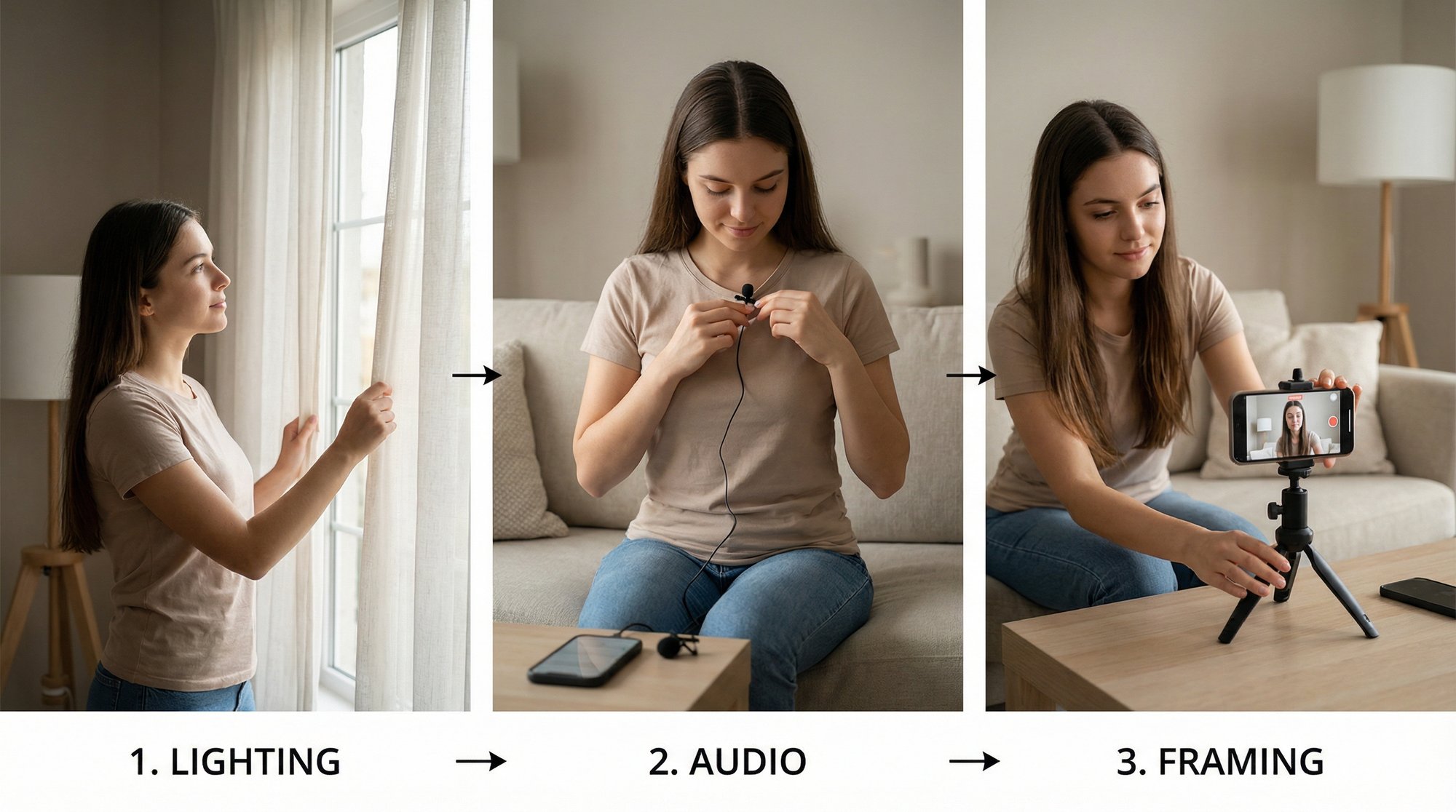
The best camera is the one in your pocket. Seriously. Your smartphone shoots incredible video, often looking far better than the webcam built into most laptops. To get great results, just focus on the fundamentals.

  • Find good light: Sit facing a window. That soft, natural light is the most flattering. Whatever you do, don't sit with a bright window behind you—you’ll turn into a silhouette.

  • Keep it steady: Prop your phone on a stack of books or a cheap tripod. Shaky footage is an instant giveaway that something is amateur.

  • Get clean audio: Record in a quiet room. Background noise is your enemy. If you have an external lavalier mic that plugs into your phone, use it. It will make a massive difference in your sound quality.

Don’t get hung up on perfection. Just deliver your message clearly and with confidence. Your authentic delivery will always be more powerful than a technically perfect but robotic performance.

Step 2: Get Your Files into the Cloud

This is where the Chromebook workflow really clicks. Forget messing with cables or trying to email massive video files to yourself. The beautiful, seamless connection between your phone and Chromebook via Google Drive is your secret weapon.

As soon as you’re done recording on your phone, just upload the video file to a specific folder in your Google Drive app.

By the time you sit down at your Chromebook and open the lid, the file is already there, waiting for you. This cloud-first approach completely removes a major bottleneck and keeps your Chromebook's local storage free and fast.

Make this a habit—shoot on phone, upload to Drive—and you'll create a clean, organized system that saves you a ton of headaches later.

Step 3: Jump into the Edit

Now it's time to fire up your web-based video editing software for Chromebook. Whether you've landed on Clipchamp, WeVideo, or Flixier, the basic steps are pretty much the same. You'll link your Google Drive account and pull your footage directly into the editor's media library.

From there, follow this simple editing sequence:

  1. The Rough Cut: Drag your clip to the timeline and start chopping. Get rid of the awkward start and end where you’re fumbling with the camera. Cut out long pauses, "ums" and "ahs," and any blatant mistakes. The goal is to make your story tight and punchy.

  2. Add B-Roll & Graphics: To keep things interesting, layer in some relevant visuals while you're talking. This could be stock video from the editor's built-in library, a screenshot of your product, or just your company logo tucked into a corner. Visuals help illustrate your points and stop your audience from scrolling away.

  3. Brand It: If you have a brand kit, now's the time to use it. Make sure any text or graphics use your brand colors and fonts. Consistency is key.

Step 4: Add Captions (They’re Not Optional)

Let's be clear: in a world where most people watch videos on their phone with the sound off, captions are not optional. They’re absolutely essential for getting your message across.

Thankfully, nearly every modern web editor has an auto-captioning feature that uses AI to transcribe your audio in just a few seconds.

After the AI does its thing, take a minute to read through the captions and fix any weird spelling or grammar mistakes. You can also style them with your brand colors and fonts. If you want to streamline this even further, you can even automatically edit your videos with smart captions and branding using specialized services built for this exact purpose.

Finally, drop in a simple background music track from the editor’s stock library. Find something that fits the mood, and make sure you turn the volume down so it isn’t competing with your voice.

Step 5: Export Like a Pro

You're on the home stretch! The last step is to export your masterpiece. Your video editor will almost certainly have presets designed for the most popular social media platforms.

Here’s what to look for:

  • Resolution: Stick with 1080p. It's the gold standard for crisp, clear short-form video.

  • Aspect Ratio: Choose 9:16 (vertical) for Instagram Reels, YouTube Shorts, and TikTok. For a LinkedIn or Instagram feed post, a 1:1 (square) ratio often works best.

Just pick the right preset and hit export. The heavy lifting (rendering) happens on their powerful cloud servers, not your Chromebook. In just a few minutes, you’ll have a polished, professional video ready to download and share.

When to Outsource Your Video Editing

Figuring out the right video editing software for a Chromebook is a huge win, but let's be honest: the best tool in the world can't create your most valuable asset—time. Even when you’ve got a slick workflow down, video editing demands serious focus and a real commitment to learning. This brings every founder and creator to a crossroads, forcing them to ask a tough question: what is an hour of my time really worth?

Is spending that hour trimming clips, wrestling with captions, and hunting for the perfect B-roll the best way to use your unique expertise? For a lot of us, the answer is a hard no. Your time is far more valuable when spent on big-picture strategy, talking to customers, or leading your team. This is the exact point where DIY editing, while a great way to start, needs to make way for a smarter, more scalable approach.

The True Cost of DIY Video Production

The real cost of editing isn't just a monthly software subscription. It's the opportunity cost—it's everything else you could have been doing with that time. If you sink three hours a week into editing, that's over 150 hours a year you're not putting back into growing the core of your business.

A three-step diagram outlining the short-form video workflow: record, edit, and post.

The workflow looks simple enough on paper. Record, edit, post. But that middle step, "edit," often turns into a massive time suck that kills your consistency and momentum.

Outsourcing your video editing isn't about losing control. It's about taking back your time and doubling down on what you do best. Think of it as an investment in consistency, freeing you from the day-to-day grind of production so you can focus purely on your message.

When you start treating video editing as an operational task to be delegated—not a creative burden to be endured—you unlock the ability to produce amazing content at scale. Your only job becomes sharing your ideas.

This is exactly where a service like Unfloppable steps in as a strategic partner. Their model is designed for busy leaders. All you do is record your thoughts and upload the raw footage. A dedicated team takes it from there, handling all the editing, captions, branding, and B-roll to deliver a polished video that’s ready to publish. If you're considering this leap, learning about the different outsource video editing services is the perfect next step.

The business case is simple. You get a steady flow of professional-quality video content that builds your brand, all without sacrificing the time you need to actually run your company.

Common Questions About Editing Videos on a Chromebook

Jumping into video creation on a Chromebook usually brings up a few key questions. Let's tackle the most common ones I hear from people trying to figure out the best way to get their content made.

Can a Cheap Chromebook Really Edit 4K Video?

This is the big one. And the answer is a surprising "yes, but not how you think." If you try to edit a 4K file directly on a budget Chromebook, you're going to have a bad time. It just doesn't have the horsepower.

But here's the magic of cloud-based video editing software for Chromebook. When you use a web editor, the hard work—the rendering, the processing—all happens on a powerful server somewhere else. Your Chromebook is just the remote control. This clever workaround lets you smoothly edit high-resolution 4K footage without any lag, even on an inexpensive machine.

Should I Use a Web Editor or an Android App?

It really boils down to what you're trying to create. Think of it like this: web-based editors are your full-blown production studio. They're packed with features like multi-track timelines, massive stock libraries, and tools for team collaboration. They're perfect when you're crafting a polished marketing video or a detailed tutorial.

Android apps are more like a pocket knife—quick, simple, and incredibly handy for specific jobs. They shine when you need to trim a clip, slap on a filter, and get it posted fast. For quick-turnaround social media content like Instagram Stories or TikToks, they're often the best tool for the job.

The right tool is the one that fits the task. For complex, polished videos, go with a web editor. For speed and simplicity on social media, an Android app is your best bet.

How Much Storage Do I Actually Need?

Probably a lot less than you think. This is one of the best-kept secrets of the Chromebook workflow. Because you're working with cloud editors and storing your raw footage in Google Drive or Dropbox, you don't need a laptop with a giant internal hard drive. You can easily get by with a Chromebook that has just 32GB or 64GB of storage.

I'm a Busy Founder. What's the Absolute Fastest Way to Get Videos Done?

Okay, even with all these great tools, editing still takes time. If you're running a business, your time is your most valuable asset. The single fastest way to get videos made is to not do the editing yourself. It's that simple.

A service built specifically for this problem is the ultimate shortcut. You just record your thoughts, upload the raw file, and a professionally edited, ready-to-post video comes back to you. This hands-off approach frees up hours every week, letting you focus on strategy, sales, and actually growing your business.

The best content strategy is the one you can actually stick to. If editing is slowing you down, let Unfloppable take it completely off your plate. You just talk, and we turn your ideas into polished videos that are ready for prime time. Get your first three videos for free at https://unfloppable.com.

Yes, you can absolutely find fantastic video editing software for Chromebook devices. A new wave of cloud-based editors, versatile Android apps, and even powerful Linux tools have turned these lightweight laptops into surprisingly capable content creation machines—perfect for founders and creators on the move.

You Can Absolutely Edit Videos on a Chromebook

Person editing video on a Chromebook laptop, with a camera and smartphone on a wooden desk.

Let's clear the air and bust an old myth right now: Chromebooks are not just for browsing the web anymore. The idea that you need a thousand-dollar, beast of a machine to create professional-looking videos is completely outdated. In fact, your sleek, affordable Chromebook might just be your secret weapon for creating content efficiently.

Think of it like cooking. You don't need a massive industrial kitchen to make an amazing meal. Sometimes, a high-quality air fryer is smarter, faster, and gets the job done better. That's your Chromebook—a focused tool that excels when you pair it with the right ingredients, or in this case, the right software.

This is all possible because the world of video editing has fundamentally changed. The heavy lifting isn't happening on your local machine anymore; it's being handled in the cloud.

The New Era of Chromebook Creativity

The rise of the Chromebook isn't just a blip on the radar; it's a real shift in how people get work done. The global market for these devices hit an incredible $14.7 billion in 2026, with over 22 million units shipped worldwide. This boom is fueled by startups, educators, and small businesses who crave simplicity and value—the very people who need smart, efficient video workflows.

With Chrome OS now capturing 8.44% of the US desktop market, the demand for great software has exploded. You can find more Chromebook market statistics and trends from recent industry reports. This guide is your map to unlocking that potential and turning your device into a lean, mean, video-editing machine.

You don't need the most powerful hardware to create the most impactful content. You need the smartest workflow. A Chromebook, combined with cloud-based tools, gives busy founders that exact advantage.

What This Guide Will Cover

We're going to walk you through everything you need to know, from understanding your Chromebook's unique design to mastering a workflow that gets content out the door. We'll give you a clear path forward so you can stop worrying about technical specs and start creating videos that grow your business.

Here’s what you will learn:

  • Platform Strengths and Limits: We'll show you how to work with your Chromebook's design, not against it, for a frustration-free editing experience.

  • The Best Software Options: We'll dive into the top web-based, Android, and even Linux apps available for ChromeOS and compare the pros and cons of each.

  • A Practical Workflow: You'll get a step-by-step process for creating polished short-form videos without the headache.

  • Strategic Outsourcing: We'll explore when it makes sense to hand off your editing to a service like Unfloppable to save time and scale your content production.

Your Chromebook isn't a limitation; it’s an asset. Let’s dive in.

Working with Your Chromebook's Strengths and Limits

To get great results from any tool, you have to know what it was built for. Chromebooks are designed for speed, security, and simplicity. If you try to force one to act like a hulking desktop editing rig, you're just setting yourself up for a world of frustration. The secret is to lean into what it does best.

Think of it like a nimble city car. It’s zippy, efficient, and perfect for navigating the day-to-day web. You wouldn’t take it mudding or try to tow a trailer with it, right? The same logic applies here—it’s not built for rendering complex 4K timelines with layers of visual effects directly on the machine.

The good news is, you don’t have to. The modern way to find the right video editing software for Chromebook is to pick a tool that plays to its cloud-native strengths.

Your Three Main Editing Paths

On ChromeOS, you’re not stuck with just one type of app. You have three distinct routes you can take, and each one is suited for different kinds of projects and comfort levels.

  • Web-Based Editors: This is the best and most powerful option for almost every Chromebook user. These platforms run entirely inside your Chrome browser, which means their powerful cloud servers do all the heavy lifting. Your Chromebook just becomes a lightweight window to control the action.

  • Android Apps: Pulled straight from the Google Play Store, these apps give you a mobile-first, touch-friendly editing experience. They are fantastic for quick trims, adding a filter, or whipping up content for social media platforms like TikTok or Instagram Stories.

  • Linux Applications: If you're a bit more adventurous and don't mind getting your hands dirty, you can enable the Linux environment on your Chromebook. This opens up a world of powerful, open-source desktop editors. It gives you incredible control, but it also comes with a steeper learning curve and can be a bit more demanding on your system.

A Quick Guide to Your Chromebook’s Hardware

While cloud editors take most of the pressure off your local hardware, your device's specs still make a difference in how smooth everything feels. Let’s break down the key components.

  • CPU (Processor): This is the brain of your Chromebook. A peppier processor, like an Intel Core i3 or i5, will make the editor's interface feel much more responsive than a base-level Celeron chip.

  • RAM (Memory): Think of RAM as your Chromebook’s short-term workspace. More RAM (8GB is a great sweet spot) lets you juggle more browser tabs and switch between your editor and other apps without things grinding to a halt.

  • Storage (eMMC or SSD): Chromebooks are known for having minimal local storage, and that’s by design. It’s actually a blessing in disguise for video editing. Your massive video files should live in Google Drive or Dropbox, not clogging up your device. You just need enough local space for the OS and a few key apps.

A Chromebook’s real power isn’t just what’s under the hood—it’s how seamlessly it connects you to the massive power of the cloud. That’s its secret weapon.

The Winning Formula for Creators

It's easy to get bogged down in what a Chromebook can't do, but that misses the point. Its biggest advantages are perfectly matched for busy founders and creators who need to be efficient. The price tag is an obvious win, but the real magic is in the workflow.

Rock-solid security and automatic updates mean you spend zero time on maintenance and more time actually creating. Better yet, the deep integration with Google Drive makes file management an absolute breeze. You can shoot a video on your phone, see it automatically appear in the cloud, and open it in your web editor seconds later—no cables, no transfers. For anyone making lots of content, knowing how to manage those files is key. You can learn more about how to compress a MP4 video to make this even more efficient. This cloud-first process is the key to a fast, organized, and stress-free production cycle.

The Top Web-Based Video Editors for ChromeOS


A black laptop displays a video editing interface with a woman in a video clip and several media thumbnails.

Let's be honest: for just about everyone using a Chromebook, web-based video editors are the answer. They are the magic trick that turns your wonderfully lightweight laptop into a genuine content-creation machine, all without making your hardware break a sweat. The concept behind them is brilliantly simple.

Instead of forcing your Chromebook’s processor and RAM to do all the heavy lifting, the demanding work—rendering, transcoding, applying effects—is offloaded to powerful servers in the cloud. All your machine needs to do is run a Chrome browser tab. That’s it. The entire experience feels snappy and smooth.

Think of it like streaming a 4K movie. Your Chromebook isn't actually processing that massive movie file; it's just displaying the video fed to it from a server. Web-based editors use this exact same principle for video creation, and it’s the single biggest reason why finding great video editing software for Chromebook is no longer a challenge.

What to Look For in a Web-Based Editor

When you start looking at different options, it’s easy to get overwhelmed by a long list of features. For most business owners and creators, though, only a few things really matter for producing professional content without pulling your hair out.

  • Brand Kits: Can you upload your logo, set your brand colors, and use your own fonts? This is non-negotiable for keeping your videos looking consistent and professional.

  • AI-Powered Tools: Features like automatic caption generation, text-to-speech, and smart content suggestions aren't just cool; they can literally save you hours of tedious work.

  • Stock Media Libraries: Having a built-in library of royalty-free video clips, images, and music is a game-changer for adding that extra layer of polish to your projects.

  • Collaboration Features: If you work with a team, the ability to share projects for feedback or have multiple people edit is a massive plus.

These are the features that separate the basic clip trimmers from the serious business tools. They help you create content that not only looks fantastic but also aligns perfectly with your brand and marketing goals.

Top Contenders for Chromebook Video Editing

The cloud-based editing scene is blowing up, but a few key players have really dialed in their experience for ChromeOS. These are the tools that have proven they have the performance, intuitive design, and features that modern creators actually need.

Make no mistake, cloud editors have completely changed the game. The broader video editing market is expected to hit $3.75 billion by 2026, with cloud-based workflows growing at a blistering 8.23% compound annual growth rate. That growth is all about accessibility and power. Platforms like Flixier are known for their insane rendering speeds, while tools like WeVideo pack in over a million stock media assets and even green screen effects, all from your browser. You can dive deeper into the rise of cloud editing for Chromebooks to see just how much these platforms have evolved.

So, let's break down a few of the best and most reliable options out there today.

The best web-based editor for you is the one that removes the most friction from your creative process. It should feel less like a complex piece of software and more like a helpful partner.

A Head-to-Head Comparison

Choosing the right platform really comes down to what you need, what your budget looks like, and the kind of videos you're making. Here's a quick look at how the leading web-based editors stack up against each other, especially for us Chromebook users.

Top Cloud Video Editors for Chromebook Comparison

Finding the perfect cloud-based editor can feel like a chore, but it really boils down to matching a platform's strengths to your workflow. This table breaks down our top picks to help you see, at a glance, which one might be the best fit for your business or creative projects.

Software

Best For

Key Features

Pricing Model

Clipchamp

Beginners and solo creators making quick social media videos.

User-friendly interface, AI text-to-speech, strong free tier, Microsoft integration.

Freemium (Free, Paid Tiers)

WeVideo

Small teams, educators, and businesses needing robust collaboration.

Huge stock media library, green screen, multi-track editing, mobile & desktop sync.

Subscription

Flixier

High-volume creators and marketers who need speed above all else.

Lightning-fast cloud rendering, direct integrations (Zoom, Twitch), review links.

Subscription

Ultimately, the "best" tool is subjective. A content creator churning out daily TikToks has very different needs than a marketing team collaborating on a major product launch video.

Let's dive a bit deeper into what makes each one tick.

Clipchamp

Now owned by Microsoft, Clipchamp has a fantastic free tier and an interface that just makes sense right out of the box. It’s perfect for quick, simple edits and is loaded with handy templates for social media. Plus, its tight integration with Microsoft products like OneDrive is a huge win for many.

  • Best For: Beginners and individuals creating straightforward social media content or personal projects.

  • Standout Feature: The text-to-speech tool is surprisingly natural-sounding and supports a ton of languages, making voiceovers an absolute breeze.

WeVideo

WeVideo has been a powerhouse in the education and business worlds for years, and for good reason. It’s packed with robust features like multi-track editing, green screen effects, and a truly massive stock media library. Its collaborative tools are also best-in-class, letting multiple users work on the same project timeline without stepping on each other's toes.

  • Best For: Small teams, educators, and businesses that need strong collaborative features and a rich asset library.

  • Standout Feature: Its cloud-first design means you can start a project on your Chromebook at the office and seamlessly finish it on your phone using the WeVideo Android app on the train home.

Flixier

Flixier was built from the ground up for one thing: speed. It boldly promises to render your videos in under three minutes, no matter how modest your computer’s specs are. For anyone producing a high volume of content, this is a legitimate game-changer. It also boasts powerful collaboration tools, simple review links for feedback, and direct integrations with platforms like Zoom, Twitch, and Google Drive.

  • Best For: Content creators, marketers, and teams who prioritize rapid turnaround times and efficient workflows.

  • Standout Feature: That lightning-fast cloud rendering engine is the star of the show. It completely eliminates the dreaded export progress bar that we all hate.

Taking Your Edits Further with Android and Linux Apps

Two laptops on a desk, one displaying an image, the other showing video editing software, with 'Android & Linux' text.

While web-based editors are the undisputed champions for most of us on a Chromebook, sometimes you just need something more. Maybe you need to make a quick trim while you're offline, or perhaps you're a seasoned editor who craves the fine-tuned control of a traditional desktop application.

This is where your Chromebook reveals its hidden talents. By tapping into the worlds of Android and Linux, you can unlock entirely new ways to edit video, moving beyond the browser to get more hands-on.

Android apps bring the snappy, intuitive feel of mobile editing to your laptop's bigger screen. On the other hand, Linux opens the door to powerful, open-source software that looks and feels a lot like what you'd find on a high-end Mac or Windows PC. Let's dig into where each one shines.

Android Apps: Built for Speed and Social Media

Thanks to the Google Play Store, your Chromebook has access to a treasure trove of Android video editors. These apps were born on smartphones, so they’re designed from the ground up to be fast, simple, and touch-friendly. This makes them a fantastic choice for whipping up short-form content for social media.

Think of them as the perfect tools for that last-minute polish. They’re brilliant for tasks like:

  • Quick Trims: Slicing up clips with your trackpad is a breeze.

  • Applying Filters: Adding a color grade or a trendy effect is usually just a tap away.

  • Adding Music and Text: Most apps make it incredibly simple to layer a background track or overlay some quick captions.

These apps aren’t built for editing a feature film. Their real strength is their immediacy—letting you assemble a quick Reel or TikTok video in a familiar, mobile-first environment without missing a beat.

The secret weapon of Android video apps on a Chromebook is how they bridge the gap between your phone and your laptop. You can start an edit on one device and seamlessly finish it on the other.

Linux Apps: Unleashing True Desktop Power

For anyone who wants to push their Chromebook to its absolute limits, there’s the Linux environment. Think of it like adding a professional-grade workshop to your home—it gives you access to a completely different class of tools built for serious, desktop-level work.

This is the path to take if you miss the feel of a traditional non-linear editor (NLE) with multiple video tracks, advanced color correction, and granular timeline controls. It requires a bit more setup, but the payoff is huge if you’re a power user.

Incredible open-source editors like Kdenlive or Shotcut offer features you simply won't find in web or Android apps. They provide the closest thing to a traditional editing experience, making them a legitimate video editing software for chromebook for more ambitious projects.

So, Which Path Is Right for You?

Diving into the world of Android or Linux apps really comes down to your needs and how comfortable you are with a little tinkering. They aren't meant to replace web-based editors but to complement them.

  • You should explore Android apps if: You mostly create short-form social content and value speed and simplicity over everything. You want to make quick, punchy edits with zero fuss.

  • You should consider Linux apps if: You're a more technical user who doesn't mind a one-time setup process. You need advanced features like multi-track timelines and precise controls for longer, more involved video projects.

By choosing the right tool for the job, you can turn your humble Chromebook into a surprisingly capable and versatile editing machine.

A Simple Workflow for Short-Form Video

Alright, enough theory. Let's get our hands dirty.

Knowing which tools exist is one thing, but actually putting them to work is what gets videos made. Here’s a practical, step-by-step process for creating a polished short-form video on your Chromebook. I’ve designed this workflow specifically for speed, making it perfect for busy founders who need to get great content out the door without it becoming a full-time job.

We'll stick to a simple, repeatable process using your phone, Google Drive, and a web-based editor. The goal here is to go from a raw recording to a ready-to-post video in under an hour. It’s all about playing to the Chromebook’s strengths.

Step 1: Nail the Recording

The best camera is the one in your pocket. Seriously. Your smartphone shoots incredible video, often looking far better than the webcam built into most laptops. To get great results, just focus on the fundamentals.

  • Find good light: Sit facing a window. That soft, natural light is the most flattering. Whatever you do, don't sit with a bright window behind you—you’ll turn into a silhouette.

  • Keep it steady: Prop your phone on a stack of books or a cheap tripod. Shaky footage is an instant giveaway that something is amateur.

  • Get clean audio: Record in a quiet room. Background noise is your enemy. If you have an external lavalier mic that plugs into your phone, use it. It will make a massive difference in your sound quality.

Don’t get hung up on perfection. Just deliver your message clearly and with confidence. Your authentic delivery will always be more powerful than a technically perfect but robotic performance.

Step 2: Get Your Files into the Cloud

This is where the Chromebook workflow really clicks. Forget messing with cables or trying to email massive video files to yourself. The beautiful, seamless connection between your phone and Chromebook via Google Drive is your secret weapon.

As soon as you’re done recording on your phone, just upload the video file to a specific folder in your Google Drive app.

By the time you sit down at your Chromebook and open the lid, the file is already there, waiting for you. This cloud-first approach completely removes a major bottleneck and keeps your Chromebook's local storage free and fast.

Make this a habit—shoot on phone, upload to Drive—and you'll create a clean, organized system that saves you a ton of headaches later.

Step 3: Jump into the Edit

Now it's time to fire up your web-based video editing software for Chromebook. Whether you've landed on Clipchamp, WeVideo, or Flixier, the basic steps are pretty much the same. You'll link your Google Drive account and pull your footage directly into the editor's media library.

From there, follow this simple editing sequence:

  1. The Rough Cut: Drag your clip to the timeline and start chopping. Get rid of the awkward start and end where you’re fumbling with the camera. Cut out long pauses, "ums" and "ahs," and any blatant mistakes. The goal is to make your story tight and punchy.

  2. Add B-Roll & Graphics: To keep things interesting, layer in some relevant visuals while you're talking. This could be stock video from the editor's built-in library, a screenshot of your product, or just your company logo tucked into a corner. Visuals help illustrate your points and stop your audience from scrolling away.

  3. Brand It: If you have a brand kit, now's the time to use it. Make sure any text or graphics use your brand colors and fonts. Consistency is key.

Step 4: Add Captions (They’re Not Optional)

Let's be clear: in a world where most people watch videos on their phone with the sound off, captions are not optional. They’re absolutely essential for getting your message across.

Thankfully, nearly every modern web editor has an auto-captioning feature that uses AI to transcribe your audio in just a few seconds.

After the AI does its thing, take a minute to read through the captions and fix any weird spelling or grammar mistakes. You can also style them with your brand colors and fonts. If you want to streamline this even further, you can even automatically edit your videos with smart captions and branding using specialized services built for this exact purpose.

Finally, drop in a simple background music track from the editor’s stock library. Find something that fits the mood, and make sure you turn the volume down so it isn’t competing with your voice.

Step 5: Export Like a Pro

You're on the home stretch! The last step is to export your masterpiece. Your video editor will almost certainly have presets designed for the most popular social media platforms.

Here’s what to look for:

  • Resolution: Stick with 1080p. It's the gold standard for crisp, clear short-form video.

  • Aspect Ratio: Choose 9:16 (vertical) for Instagram Reels, YouTube Shorts, and TikTok. For a LinkedIn or Instagram feed post, a 1:1 (square) ratio often works best.

Just pick the right preset and hit export. The heavy lifting (rendering) happens on their powerful cloud servers, not your Chromebook. In just a few minutes, you’ll have a polished, professional video ready to download and share.

When to Outsource Your Video Editing

Figuring out the right video editing software for a Chromebook is a huge win, but let's be honest: the best tool in the world can't create your most valuable asset—time. Even when you’ve got a slick workflow down, video editing demands serious focus and a real commitment to learning. This brings every founder and creator to a crossroads, forcing them to ask a tough question: what is an hour of my time really worth?

Is spending that hour trimming clips, wrestling with captions, and hunting for the perfect B-roll the best way to use your unique expertise? For a lot of us, the answer is a hard no. Your time is far more valuable when spent on big-picture strategy, talking to customers, or leading your team. This is the exact point where DIY editing, while a great way to start, needs to make way for a smarter, more scalable approach.

The True Cost of DIY Video Production

The real cost of editing isn't just a monthly software subscription. It's the opportunity cost—it's everything else you could have been doing with that time. If you sink three hours a week into editing, that's over 150 hours a year you're not putting back into growing the core of your business.

A three-step diagram outlining the short-form video workflow: record, edit, and post.

The workflow looks simple enough on paper. Record, edit, post. But that middle step, "edit," often turns into a massive time suck that kills your consistency and momentum.

Outsourcing your video editing isn't about losing control. It's about taking back your time and doubling down on what you do best. Think of it as an investment in consistency, freeing you from the day-to-day grind of production so you can focus purely on your message.

When you start treating video editing as an operational task to be delegated—not a creative burden to be endured—you unlock the ability to produce amazing content at scale. Your only job becomes sharing your ideas.

This is exactly where a service like Unfloppable steps in as a strategic partner. Their model is designed for busy leaders. All you do is record your thoughts and upload the raw footage. A dedicated team takes it from there, handling all the editing, captions, branding, and B-roll to deliver a polished video that’s ready to publish. If you're considering this leap, learning about the different outsource video editing services is the perfect next step.

The business case is simple. You get a steady flow of professional-quality video content that builds your brand, all without sacrificing the time you need to actually run your company.

Common Questions About Editing Videos on a Chromebook

Jumping into video creation on a Chromebook usually brings up a few key questions. Let's tackle the most common ones I hear from people trying to figure out the best way to get their content made.

Can a Cheap Chromebook Really Edit 4K Video?

This is the big one. And the answer is a surprising "yes, but not how you think." If you try to edit a 4K file directly on a budget Chromebook, you're going to have a bad time. It just doesn't have the horsepower.

But here's the magic of cloud-based video editing software for Chromebook. When you use a web editor, the hard work—the rendering, the processing—all happens on a powerful server somewhere else. Your Chromebook is just the remote control. This clever workaround lets you smoothly edit high-resolution 4K footage without any lag, even on an inexpensive machine.

Should I Use a Web Editor or an Android App?

It really boils down to what you're trying to create. Think of it like this: web-based editors are your full-blown production studio. They're packed with features like multi-track timelines, massive stock libraries, and tools for team collaboration. They're perfect when you're crafting a polished marketing video or a detailed tutorial.

Android apps are more like a pocket knife—quick, simple, and incredibly handy for specific jobs. They shine when you need to trim a clip, slap on a filter, and get it posted fast. For quick-turnaround social media content like Instagram Stories or TikToks, they're often the best tool for the job.

The right tool is the one that fits the task. For complex, polished videos, go with a web editor. For speed and simplicity on social media, an Android app is your best bet.

How Much Storage Do I Actually Need?

Probably a lot less than you think. This is one of the best-kept secrets of the Chromebook workflow. Because you're working with cloud editors and storing your raw footage in Google Drive or Dropbox, you don't need a laptop with a giant internal hard drive. You can easily get by with a Chromebook that has just 32GB or 64GB of storage.

I'm a Busy Founder. What's the Absolute Fastest Way to Get Videos Done?

Okay, even with all these great tools, editing still takes time. If you're running a business, your time is your most valuable asset. The single fastest way to get videos made is to not do the editing yourself. It's that simple.

A service built specifically for this problem is the ultimate shortcut. You just record your thoughts, upload the raw file, and a professionally edited, ready-to-post video comes back to you. This hands-off approach frees up hours every week, letting you focus on strategy, sales, and actually growing your business.

The best content strategy is the one you can actually stick to. If editing is slowing you down, let Unfloppable take it completely off your plate. You just talk, and we turn your ideas into polished videos that are ready for prime time. Get your first three videos for free at https://unfloppable.com.