How to Edit iPhone Videos for YouTube: A Pro Workflow

Learn how to edit iPhone videos for YouTube with our pro workflow. From shooting to export and upload, get the steps to create polished content on your phone.

Apr 25, 2026

You’ve probably done this already. You had a solid idea for YouTube, opened your iPhone, recorded a talking-head video in one take, maybe even felt good about it, then hit the part that leaves many stumped: editing.

The footage is there, but now you have dead air at the start, a few awkward pauses, one sentence you want to move, and no clean path from camera roll to published video. Most advice online jumps between “just trim it in Photos” and “learn a full desktop editor.” That’s not helpful if you’re a founder, operator, or subject-matter expert trying to turn ideas into a repeatable content system.

The good news is that your iPhone can handle the whole job. You can plan, shoot, assemble, polish, export, and upload for YouTube without touching a laptop. The bad news is that doing it well takes a workflow, not just an app.

That’s the missing piece in most guides on how to edit iphone videos for youtube. The core challenge isn’t pressing the trim button. It’s building a process that helps you go from a rough idea in your head to a video people will want to watch, then knowing when that process is helping your business and when it’s gradually consuming your week.

Your iPhone Is a Full-Service YouTube Studio

A lot of founders treat the iPhone like a temporary camera. They record on it, then assume the “real work” starts somewhere else. That mindset creates friction before the edit even begins.

What works is treating the phone as the production hub. Idea capture, script notes, recording, rough cut, captions, upload, title, description, thumbnail selection. It can all happen in one place. That matters because the faster you move from thought to published video, the more likely you are to stay consistent.

I’ve seen the same pattern over and over. Someone has useful things to say about hiring, product, customer pain, pricing, or growth. They can talk clearly for ten or twenty minutes. But the moment they think editing requires a desktop setup, external drives, and a complex timeline, they stop publishing.

That’s a mistake.

The iPhone is already good enough to get you moving, and for a lot of YouTube creators, good enough to stay there. Apple’s built-in tools handle quick corrections. Apps like VN Video Editor let you build a real narrative with multiple clips, B-roll, audio, and text. The YouTube app itself closes the last mile for publishing.

Practical rule: If your current setup lets you publish consistently, it’s a real studio. Don’t wait for a “professional” workflow before you start acting like a creator.

The bigger shift is mental. Stop thinking in terms of “editing a video.” Start thinking in terms of a founder-to-creator workflow:

  • Capture the idea before it disappears

  • Record clean footage that’s easy to cut

  • Assemble the message so viewers stay with you

  • Polish only what matters

  • Publish from the same device

  • Repeat without rebuilding the process every time

That’s how YouTube becomes sustainable on an iPhone. Not because every feature is perfect, but because the whole chain can live in your pocket.

Shoot for the Edit to Optimize Your iPhone Footage

A lot of founders lose time in editing for a reason that has nothing to do with editing. They record first and make decisions later. On an iPhone, that gets expensive fast.

The easiest way to cut faster is to shoot footage that already fits the video you plan to publish. Good framing, clean audio, stable exposure, and intentional pauses remove half the cleanup work before you open Photos, iMovie, or VN.

A person holding an iPhone displaying a landscape video editing interface with the text Shoot Smart nearby.

Start with the settings that match YouTube

For standard YouTube videos, use a 16:9 aspect ratio. YouTube’s official recommended upload settings call for 16:9, and shooting that way from the start avoids awkward crops and wasted frame space later.

Best default: Shoot in horizontal 16:9 unless you’re specifically making Shorts.

Use this baseline:

Resolution: 4K if you want room to crop, zoom, or reframe later. 1080p is still fine if you want smaller files and faster exports.
Frame rate: 30 fps for most talking-head YouTube videos.
60 fps: Use it for movement, product demos, or clips you may want to slow down.
Cinematic mode: Use it carefully. It can look polished, but missed focus is hard to repair on a phone.

That trade-off matters. Higher resolution gives you flexibility in the edit, but it also gives you larger files, slower transfers between apps, and more heat on older phones. If you are filming a simple sit-down video with solid framing, 1080p often saves time without hurting the result.

If you want Apple’s built-in timeline before moving into a heavier mobile editor, this guide on how to edit in iMovie is a good next step.

Make the room do half the work

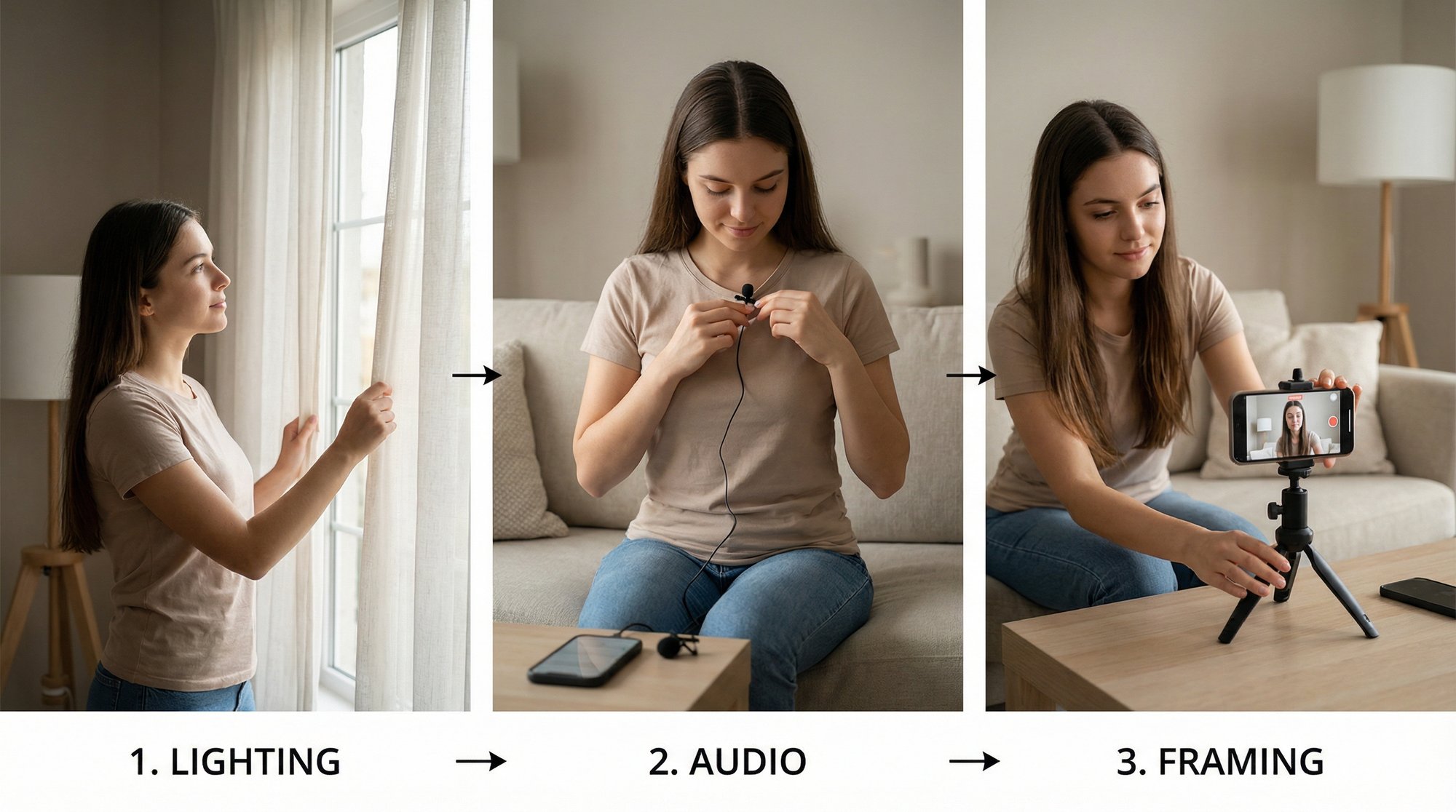
A usable setup is usually one window, one quiet corner, and a background that does not fight for attention.

Face the window, or sit at a slight angle to it. Backlighting makes your face harder to expose properly, and fixing that later on an iPhone is possible but annoying. Keep the background simple. A desk, shelf, plant, or product box is enough context for most founder content.

Audio deserves more attention than video. Viewers will forgive a phone camera faster than they will forgive hollow, distant sound. The built-in mic can work well when the phone is close. Once the phone gets too far away, your room starts joining the conversation.

A quick pre-flight routine prevents avoidable problems:

  • Wipe the lens before every take.

  • Put the phone close enough that your voice sounds direct.

  • Remove distractions from the frame, especially bright objects near your face.

  • Lock exposure and focus after you frame the shot.

  • Record a few quiet seconds before speaking so you have clean room tone for cuts later.

If you plan to add background audio in post, keep it light. Music should support the pacing, not compete with your voice. Here’s a practical guide on adding music to video on iPhone.

The video below gives a useful visual reference for shooting choices that make editing easier on mobile.

Record like an editor, not just a speaker

Founders who publish consistently usually do one thing well during recording. They leave themselves clean decisions.

If a line comes out wrong, stop and restart the sentence from the top. Do not talk through the mistake and hope to fix it later. On a phone timeline, clean retakes are much easier to spot and cut than messy recoveries.

A few habits save real time:

  1. Record the hook first, even if you later move or replace it.

  2. Leave a beat between major points so cuts have breathing room.

  3. Capture B-roll right after the main take, while the topic is still fresh. Product shots, typing, screen recordings, notebook pages, and office details all help cover edits.

  4. Break longer videos into sections instead of forcing one perfect ten-minute take.

This is the part new creators usually underestimate. Shooting for the edit is not just about cleaner clips. It is how you turn a rough idea in your head into a repeatable iPhone workflow you can sustain every week.

And it also tells you when to stop doing everything yourself. If you are spending more time rescuing bad footage than shaping the message, the fix is better recording discipline first, not a more advanced editing app.

The Core Edit Assembling Your Story on an iPhone

You finish recording, open your camera roll, and realize the actual job has not started yet. The difference between a useful idea and a YouTube video is the assembly. On iPhone, that means deciding what stays, what gets cut, what needs coverage, and whether this video is simple enough to finish in a basic app or important enough to justify a fuller timeline.

That decision matters more than people expect. Founders who edit every video themselves usually do not burn out on trimming. They burn out on indecision.

Use Photos for the first draft, not the full build

If the video is one strong take with a few rough edges, the built-in Photos app is enough to get a version out fast. Trim the dead space, straighten the frame if needed, and crop only when the composition is hurting the shot.

That is a publishing tool, not a story-building tool.

Photos works best for videos where the idea is already clear on camera. A quick update, a short opinion, a simple founder note. If you need to remove a tangent from the middle, layer supporting footage, add on-screen context, or reshape the order of your points, stop fighting the app and move to a timeline editor.

A six-step infographic illustrating the professional workflow for editing video footage on an iPhone.

Build the actual video in a timeline app

VN Video Editor is a good fit here because it gives enough control without turning a phone edit into desktop-style overhead. The goal is not to use every feature. The goal is to get from raw clips to a clear story while staying fast enough to repeat next week.

My rule is simple. Build in layers.

  1. Import all usable footage first so you can make decisions once instead of hunting through clips every five minutes.

  2. Assemble the A-roll in the order that best explains the idea, not the order you happened to record it.

  3. Cut hard for clarity. Remove repeated phrases, long run-ups, side comments, and any sentence that makes the point slower instead of stronger.

  4. Place B-roll only where it solves a problem. Cover a rough cut, show the product, or keep attention through an explanation.

  5. Add text with restraint. Labels, key terms, short callouts. If every line becomes text, the video starts competing with itself.

  6. Watch once as the editor, then once as the viewer. On the second pass, ask one question. Would someone new to this topic keep going?

That workflow sounds basic because it is. It also works.

A lot of creators get stuck trying to make mobile edits look advanced. Better pacing usually beats flashy treatment. A small push-in can help a jump cut feel less abrupt, but constant zooms, heavy transitions, and effect stacks usually signal that the message was weak to begin with. Color work and cleaner audio can improve retention and watch experience, but they do not rescue a video with a muddled structure.

Learn three cuts and use them every week

You do not need ten transition types. You need a few cuts you can apply on repeat.

Edit choice

What it does

When to use it

Jump cut

Removes pauses and tightens delivery

Talking-head sections with extra air

J-cut

Starts the next audio before the picture changes

Moving into an example, demo, or proof point

L-cut

Lets audio continue after the visual changes

B-roll sections where your voice is carrying the point

J-cuts and L-cuts matter because they make an iPhone-edited video feel intentional instead of chopped up. The viewer hears continuity, so the visual change feels smoother.

Use B-roll as support, not decoration. Product footage, app screens, a customer example, notes on a desk, a process shot from the office. Each clip should either clarify what you are saying or hide an edit cleanly. If it does neither, leave it out.

If you want a simpler Apple-native workflow, learning how to edit in iMovie is still worthwhile. iMovie is a practical middle ground when Photos feels too limited and a feature-heavy editor feels slower than the project deserves.

Edit for repeatability, not perfection

This is the part that matters for founders building a content engine. A single polished video is nice. A process you can run every week is better.

Keep the standard clear:

  • Cut for meaning first

  • Shorten anything that delays the point

  • Use motion only when it adds emphasis

  • Choose order before effects

  • Leave minor imperfections if fixing them costs too much time

That last point is where many solo creators get stuck. If you are spending 90 minutes fixing tiny visual issues in a six-minute video, the edit has stopped serving the business. At that stage, tighten the workflow, simplify the format, or hand off the assembly step. Do not keep pretending every video needs handcrafted attention from start to finish.

Music should come in after the structure is locked. If you want a clean mobile workflow for that, this guide on adding music to video on iPhone walks through the setup.

Polishing Your Video with Pro-Level Audio Color and Captions

A rough cut gets the story in place. The polish pass decides whether people stay with you long enough to trust you.

Viewers will tolerate a simple camera setup on an iPhone. They leave faster when the voice is thin, the image shifts between clips, or the captions look auto-generated and never reviewed. For founders making YouTube part of the business, this stage is not cosmetic. It is the difference between posting occasionally and building a repeatable channel people take seriously.

A smartphone interface showing a professional video editing app with color grading and captioning tools active.

Audio first, every time

On iPhone edits, audio usually breaks before the picture does. A clip can look slightly imperfect and still work. Muddy dialogue rarely survives.

I keep this simple on mobile. Get the voice clear, keep the music lower than you think it needs to be, and listen once through the actual iPhone speaker before export. Headphones hide problems. Phone speakers expose them fast.

Use this checklist:

  • Lower background music until speech stays effortless to follow

  • Trim or mute dead air with room tone hiss between sentences

  • Match voice volume across clips before adding anything else

  • Check for plosives, echo, or harsh highs on the phone speaker

  • Fix names and technical terms in captions after audio is locked

One hard truth. If your recording has heavy echo because you shot in a bare conference room, editing can only do so much. Clean up what you can, then change the shooting setup next time. That is part of the founder-to-creator workflow too. Better source footage saves more time than heroic repair work later.

Correct color. Then stop before it looks processed.

Color work on an iPhone should solve problems first. Mixed white balance, underexposure, and clips that do not match are the common ones.

Start with exposure, contrast, highlights, and warmth. Get skin tones looking normal. Then compare clips back to back. If one shot is warmer or darker than the others, fix that before trying any style choices.

Heavy grading is where solo creators waste time. It is easy to spend 20 minutes chasing a cinematic look that adds nothing to a talking-head video about pricing, hiring, or product strategy. Clean and consistent usually wins. The more your business depends on trust, the less helpful gimmicky color becomes.

Captions and text should carry information

Captions do more than help with accessibility. They catch jargon, reinforce key lines, and keep the video usable in low-volume situations.

Auto-captions are a starting point, not finished work. Review brand names, product terms, acronyms, and punctuation. Bad captions make a polished video feel careless. If you want a cleaner system for overlays, subtitles, and readable labels, this guide on adding text to videos on iPhone is a useful reference.

Text overlays need a job. Use them to introduce a framework, label a step, or pull out one sentence worth remembering. Skip text that repeats the obvious or competes with your face and voice for attention.

Here is the filter I use:

Element

Keep it if

Cut it if

Music

It supports the pace and stays behind the dialogue

It pulls attention away from the voice

Color treatment

It makes clips clearer and more consistent

It makes the footage look artificial

Captions

They improve understanding and are accurate

They contain errors or clutter the frame

Text overlays

They guide the viewer through the point

They restate what is already clear

This is also the point where some creators should stop doing everything themselves. If every video turns into audio repair, color fixes, and caption cleanup that eats half a day, the problem is no longer the app. The problem is capacity. Keep the final review on your phone if you want, but consider handing off captions, cleanup, or full post-production once YouTube becomes a regular publishing channel. That frees you up to script, record, and decide what gets published, which matters more than tweaking waveform levels at midnight.

After the final pass, make sure the file is ready to publish, title, thumbnail, description, and all. If you need a refresher on the publishing side, this guide on how to post on YouTube covers the handoff from edited video to live upload.

Exporting and Uploading for YouTube Success

A lot of iPhone creators lose the video in the last 20 minutes.

The edit is done. The file exports. Then the upload gets rushed on a walk, in a parking lot, or between meetings. The title is vague, the thumbnail is an afterthought, and the published video underperforms for reasons that have nothing to do with the actual content. If you want a repeatable iPhone-to-YouTube workflow, export and upload have to be treated as part of the edit, not cleanup after it.

A smartphone screen displaying a video editing interface with export options for YouTube, Instagram Reels, and TikTok.

Export for clarity, not convenience

Export the video in the format you planned from the start. For standard long-form YouTube, that usually means 16:9, with the same frame rate as your source footage unless you have a clear reason to change it. Last-minute conversions are where soft footage, stutter, blown highlights, and weird text scaling tend to show up.

My rule is simple. Export once if possible.

Every extra render gives compression another chance to chew up detail, especially on talking-head videos with text overlays or screen recordings. Before you upload, watch the exported file all the way through on your iPhone. Check four things: audio sync, brightness, caption placement, and whether any on-screen text gets too small once it leaves the editor preview.

If the file looks right in Photos, it usually holds up on YouTube. If it already looks off in your camera roll, publishing will not save it.

Publishing starts before you tap upload

A good YouTube workflow on iPhone runs from idea to packaging. The title, thumbnail, description, chapters, and format all affect whether the video gets clicks and whether the right viewer understands it fast.

Write the title for the search intent first, not your brand voice first. A founder making educational content should usually lead with the problem, outcome, or question the viewer already has. Keep it specific. "How I Edit YouTube Videos on iPhone" beats a clever line that hides the topic.

The description does two jobs. It gives YouTube context, and it tells the viewer what they are about to get. A short, direct summary is enough. If the video has distinct sections, add chapters. If you want help with sizing and layout before you export, use this guide on YouTube video formatting.

A strong edit with weak packaging usually performs like a weak video.

For a practical mobile-first publishing walkthrough, this guide on how to post on YouTube is worth keeping open while you upload.

Thumbnails belong in the workflow, not at the end

Founders often treat the thumbnail as design work they will "fix later." Later usually means never.

If you are publishing entirely from your iPhone, build thumbnail thinking into the shoot and the review pass. Pause on frames where your expression is clear, the shot is bright, and the subject is obvious even at a small size. If you make a custom thumbnail in Canva or another mobile app, keep the text short and readable. Two to four words is usually enough.

There is a trade-off here. A custom thumbnail can raise click-through rate, but it can also become a time sink if every upload turns into 30 more minutes of design decisions. Early on, a strong frame grab plus a clear title is often the right call. Once the channel proves it deserves more production time, upgrade the thumbnail system too.

The strongest iPhone workflow is boring in a good way. Export once. Review once. Upload carefully. Publish on schedule. That discipline matters more than obsessing over tiny export settings while the title, thumbnail, and description get whatever energy you have left.

When to Stop Editing and Start Delegating Your Content

You film after dinner, trim clips on your iPhone, fix captions, export, upload, and realize you just spent three hours producing one video. The video is fine. The problem is what did not get done while you were editing.

Cutting your own YouTube videos on an iPhone is a useful stage. It teaches pacing, what rambling sounds like, where viewers drop, and how much setup a “simple” video needs. I usually tell founders to do their own editing at the start for exactly that reason.

Then the math changes.

The primary bottleneck is repeatability. One decent upload is easy enough to force through on a phone. A weekly channel tied to a business is different. You need a workflow you can run even during travel, launch weeks, hiring pushes, and the random days when your brain is already spent before lunch.

There is also a specific gap here. Plenty of mobile editing advice is built around short clips and trend formats. Founders trying to turn a 15 to 20 minute talking-head recording into a publishable YouTube video on an iPhone usually end up inventing the process themselves. That is why editing starts as a creative skill and turns into an operations problem.

A simple framework helps:

  • Keep editing yourself if you are still finding your voice, testing topics, or posting infrequently enough that each video teaches you something new.

  • Systemize the process once your videos follow a repeatable structure, same intro style, same segments, same caption treatment, same publishing cadence.

  • Delegate editing when you already know what a good video looks like, but producing it keeps stealing time from sales, product, recruiting, or customer work.

That third stage matters more than a lot of founders expect.

Editing is rarely the highest-value job on the founder calendar. It feels productive because the output is visible. You can point to a timeline, captions, cuts, and a final export. But if every upload costs half a day of your attention, the channel is now competing with the business that is supposed to fund it.

Delegate the production, not the message.

Authenticity does not disappear because someone else trims pauses or cleans up captions. It disappears when the founder hands off the ideas, opinions, and examples that made the content worth watching in the first place. Keep the part that has to come from you. Hand off the repetitive execution once you can describe what “good” looks like.

That is the same shift many teams make when they delegate your content writing. The thinking stays in-house. The production gets documented, assigned, and reviewed.

If editing helps you publish, keep editing. If editing keeps you from publishing, hand it off.

The best iPhone workflow is the one that survives real life. For some founders, that means recording and editing on-device for a long time because volume is low and the learning is still valuable. For others, the smarter move is to keep the iPhone capture process, keep the voice, keep the approval, and stop owning every trim, caption, and export yourself.

Your content engine should start on your phone if that is what gets you publishing. It should not have to end there.

You’ve probably done this already. You had a solid idea for YouTube, opened your iPhone, recorded a talking-head video in one take, maybe even felt good about it, then hit the part that leaves many stumped: editing.

The footage is there, but now you have dead air at the start, a few awkward pauses, one sentence you want to move, and no clean path from camera roll to published video. Most advice online jumps between “just trim it in Photos” and “learn a full desktop editor.” That’s not helpful if you’re a founder, operator, or subject-matter expert trying to turn ideas into a repeatable content system.

The good news is that your iPhone can handle the whole job. You can plan, shoot, assemble, polish, export, and upload for YouTube without touching a laptop. The bad news is that doing it well takes a workflow, not just an app.

That’s the missing piece in most guides on how to edit iphone videos for youtube. The core challenge isn’t pressing the trim button. It’s building a process that helps you go from a rough idea in your head to a video people will want to watch, then knowing when that process is helping your business and when it’s gradually consuming your week.

Your iPhone Is a Full-Service YouTube Studio

A lot of founders treat the iPhone like a temporary camera. They record on it, then assume the “real work” starts somewhere else. That mindset creates friction before the edit even begins.

What works is treating the phone as the production hub. Idea capture, script notes, recording, rough cut, captions, upload, title, description, thumbnail selection. It can all happen in one place. That matters because the faster you move from thought to published video, the more likely you are to stay consistent.

I’ve seen the same pattern over and over. Someone has useful things to say about hiring, product, customer pain, pricing, or growth. They can talk clearly for ten or twenty minutes. But the moment they think editing requires a desktop setup, external drives, and a complex timeline, they stop publishing.

That’s a mistake.

The iPhone is already good enough to get you moving, and for a lot of YouTube creators, good enough to stay there. Apple’s built-in tools handle quick corrections. Apps like VN Video Editor let you build a real narrative with multiple clips, B-roll, audio, and text. The YouTube app itself closes the last mile for publishing.

Practical rule: If your current setup lets you publish consistently, it’s a real studio. Don’t wait for a “professional” workflow before you start acting like a creator.

The bigger shift is mental. Stop thinking in terms of “editing a video.” Start thinking in terms of a founder-to-creator workflow:

  • Capture the idea before it disappears

  • Record clean footage that’s easy to cut

  • Assemble the message so viewers stay with you

  • Polish only what matters

  • Publish from the same device

  • Repeat without rebuilding the process every time

That’s how YouTube becomes sustainable on an iPhone. Not because every feature is perfect, but because the whole chain can live in your pocket.

Shoot for the Edit to Optimize Your iPhone Footage

A lot of founders lose time in editing for a reason that has nothing to do with editing. They record first and make decisions later. On an iPhone, that gets expensive fast.

The easiest way to cut faster is to shoot footage that already fits the video you plan to publish. Good framing, clean audio, stable exposure, and intentional pauses remove half the cleanup work before you open Photos, iMovie, or VN.

A person holding an iPhone displaying a landscape video editing interface with the text Shoot Smart nearby.

Start with the settings that match YouTube

For standard YouTube videos, use a 16:9 aspect ratio. YouTube’s official recommended upload settings call for 16:9, and shooting that way from the start avoids awkward crops and wasted frame space later.

Best default: Shoot in horizontal 16:9 unless you’re specifically making Shorts.

Use this baseline:

Resolution: 4K if you want room to crop, zoom, or reframe later. 1080p is still fine if you want smaller files and faster exports.
Frame rate: 30 fps for most talking-head YouTube videos.
60 fps: Use it for movement, product demos, or clips you may want to slow down.
Cinematic mode: Use it carefully. It can look polished, but missed focus is hard to repair on a phone.

That trade-off matters. Higher resolution gives you flexibility in the edit, but it also gives you larger files, slower transfers between apps, and more heat on older phones. If you are filming a simple sit-down video with solid framing, 1080p often saves time without hurting the result.

If you want Apple’s built-in timeline before moving into a heavier mobile editor, this guide on how to edit in iMovie is a good next step.

Make the room do half the work

A usable setup is usually one window, one quiet corner, and a background that does not fight for attention.

Face the window, or sit at a slight angle to it. Backlighting makes your face harder to expose properly, and fixing that later on an iPhone is possible but annoying. Keep the background simple. A desk, shelf, plant, or product box is enough context for most founder content.

Audio deserves more attention than video. Viewers will forgive a phone camera faster than they will forgive hollow, distant sound. The built-in mic can work well when the phone is close. Once the phone gets too far away, your room starts joining the conversation.

A quick pre-flight routine prevents avoidable problems:

  • Wipe the lens before every take.

  • Put the phone close enough that your voice sounds direct.

  • Remove distractions from the frame, especially bright objects near your face.

  • Lock exposure and focus after you frame the shot.

  • Record a few quiet seconds before speaking so you have clean room tone for cuts later.

If you plan to add background audio in post, keep it light. Music should support the pacing, not compete with your voice. Here’s a practical guide on adding music to video on iPhone.

The video below gives a useful visual reference for shooting choices that make editing easier on mobile.

Record like an editor, not just a speaker

Founders who publish consistently usually do one thing well during recording. They leave themselves clean decisions.

If a line comes out wrong, stop and restart the sentence from the top. Do not talk through the mistake and hope to fix it later. On a phone timeline, clean retakes are much easier to spot and cut than messy recoveries.

A few habits save real time:

  1. Record the hook first, even if you later move or replace it.

  2. Leave a beat between major points so cuts have breathing room.

  3. Capture B-roll right after the main take, while the topic is still fresh. Product shots, typing, screen recordings, notebook pages, and office details all help cover edits.

  4. Break longer videos into sections instead of forcing one perfect ten-minute take.

This is the part new creators usually underestimate. Shooting for the edit is not just about cleaner clips. It is how you turn a rough idea in your head into a repeatable iPhone workflow you can sustain every week.

And it also tells you when to stop doing everything yourself. If you are spending more time rescuing bad footage than shaping the message, the fix is better recording discipline first, not a more advanced editing app.

The Core Edit Assembling Your Story on an iPhone

You finish recording, open your camera roll, and realize the actual job has not started yet. The difference between a useful idea and a YouTube video is the assembly. On iPhone, that means deciding what stays, what gets cut, what needs coverage, and whether this video is simple enough to finish in a basic app or important enough to justify a fuller timeline.

That decision matters more than people expect. Founders who edit every video themselves usually do not burn out on trimming. They burn out on indecision.

Use Photos for the first draft, not the full build

If the video is one strong take with a few rough edges, the built-in Photos app is enough to get a version out fast. Trim the dead space, straighten the frame if needed, and crop only when the composition is hurting the shot.

That is a publishing tool, not a story-building tool.

Photos works best for videos where the idea is already clear on camera. A quick update, a short opinion, a simple founder note. If you need to remove a tangent from the middle, layer supporting footage, add on-screen context, or reshape the order of your points, stop fighting the app and move to a timeline editor.

A six-step infographic illustrating the professional workflow for editing video footage on an iPhone.

Build the actual video in a timeline app

VN Video Editor is a good fit here because it gives enough control without turning a phone edit into desktop-style overhead. The goal is not to use every feature. The goal is to get from raw clips to a clear story while staying fast enough to repeat next week.

My rule is simple. Build in layers.

  1. Import all usable footage first so you can make decisions once instead of hunting through clips every five minutes.

  2. Assemble the A-roll in the order that best explains the idea, not the order you happened to record it.

  3. Cut hard for clarity. Remove repeated phrases, long run-ups, side comments, and any sentence that makes the point slower instead of stronger.

  4. Place B-roll only where it solves a problem. Cover a rough cut, show the product, or keep attention through an explanation.

  5. Add text with restraint. Labels, key terms, short callouts. If every line becomes text, the video starts competing with itself.

  6. Watch once as the editor, then once as the viewer. On the second pass, ask one question. Would someone new to this topic keep going?

That workflow sounds basic because it is. It also works.

A lot of creators get stuck trying to make mobile edits look advanced. Better pacing usually beats flashy treatment. A small push-in can help a jump cut feel less abrupt, but constant zooms, heavy transitions, and effect stacks usually signal that the message was weak to begin with. Color work and cleaner audio can improve retention and watch experience, but they do not rescue a video with a muddled structure.

Learn three cuts and use them every week

You do not need ten transition types. You need a few cuts you can apply on repeat.

Edit choice

What it does

When to use it

Jump cut

Removes pauses and tightens delivery

Talking-head sections with extra air

J-cut

Starts the next audio before the picture changes

Moving into an example, demo, or proof point

L-cut

Lets audio continue after the visual changes

B-roll sections where your voice is carrying the point

J-cuts and L-cuts matter because they make an iPhone-edited video feel intentional instead of chopped up. The viewer hears continuity, so the visual change feels smoother.

Use B-roll as support, not decoration. Product footage, app screens, a customer example, notes on a desk, a process shot from the office. Each clip should either clarify what you are saying or hide an edit cleanly. If it does neither, leave it out.

If you want a simpler Apple-native workflow, learning how to edit in iMovie is still worthwhile. iMovie is a practical middle ground when Photos feels too limited and a feature-heavy editor feels slower than the project deserves.

Edit for repeatability, not perfection

This is the part that matters for founders building a content engine. A single polished video is nice. A process you can run every week is better.

Keep the standard clear:

  • Cut for meaning first

  • Shorten anything that delays the point

  • Use motion only when it adds emphasis

  • Choose order before effects

  • Leave minor imperfections if fixing them costs too much time

That last point is where many solo creators get stuck. If you are spending 90 minutes fixing tiny visual issues in a six-minute video, the edit has stopped serving the business. At that stage, tighten the workflow, simplify the format, or hand off the assembly step. Do not keep pretending every video needs handcrafted attention from start to finish.

Music should come in after the structure is locked. If you want a clean mobile workflow for that, this guide on adding music to video on iPhone walks through the setup.

Polishing Your Video with Pro-Level Audio Color and Captions

A rough cut gets the story in place. The polish pass decides whether people stay with you long enough to trust you.

Viewers will tolerate a simple camera setup on an iPhone. They leave faster when the voice is thin, the image shifts between clips, or the captions look auto-generated and never reviewed. For founders making YouTube part of the business, this stage is not cosmetic. It is the difference between posting occasionally and building a repeatable channel people take seriously.

A smartphone interface showing a professional video editing app with color grading and captioning tools active.

Audio first, every time

On iPhone edits, audio usually breaks before the picture does. A clip can look slightly imperfect and still work. Muddy dialogue rarely survives.

I keep this simple on mobile. Get the voice clear, keep the music lower than you think it needs to be, and listen once through the actual iPhone speaker before export. Headphones hide problems. Phone speakers expose them fast.

Use this checklist:

  • Lower background music until speech stays effortless to follow

  • Trim or mute dead air with room tone hiss between sentences

  • Match voice volume across clips before adding anything else

  • Check for plosives, echo, or harsh highs on the phone speaker

  • Fix names and technical terms in captions after audio is locked

One hard truth. If your recording has heavy echo because you shot in a bare conference room, editing can only do so much. Clean up what you can, then change the shooting setup next time. That is part of the founder-to-creator workflow too. Better source footage saves more time than heroic repair work later.

Correct color. Then stop before it looks processed.

Color work on an iPhone should solve problems first. Mixed white balance, underexposure, and clips that do not match are the common ones.

Start with exposure, contrast, highlights, and warmth. Get skin tones looking normal. Then compare clips back to back. If one shot is warmer or darker than the others, fix that before trying any style choices.

Heavy grading is where solo creators waste time. It is easy to spend 20 minutes chasing a cinematic look that adds nothing to a talking-head video about pricing, hiring, or product strategy. Clean and consistent usually wins. The more your business depends on trust, the less helpful gimmicky color becomes.

Captions and text should carry information

Captions do more than help with accessibility. They catch jargon, reinforce key lines, and keep the video usable in low-volume situations.

Auto-captions are a starting point, not finished work. Review brand names, product terms, acronyms, and punctuation. Bad captions make a polished video feel careless. If you want a cleaner system for overlays, subtitles, and readable labels, this guide on adding text to videos on iPhone is a useful reference.

Text overlays need a job. Use them to introduce a framework, label a step, or pull out one sentence worth remembering. Skip text that repeats the obvious or competes with your face and voice for attention.

Here is the filter I use:

Element

Keep it if

Cut it if

Music

It supports the pace and stays behind the dialogue

It pulls attention away from the voice

Color treatment

It makes clips clearer and more consistent

It makes the footage look artificial

Captions

They improve understanding and are accurate

They contain errors or clutter the frame

Text overlays

They guide the viewer through the point

They restate what is already clear

This is also the point where some creators should stop doing everything themselves. If every video turns into audio repair, color fixes, and caption cleanup that eats half a day, the problem is no longer the app. The problem is capacity. Keep the final review on your phone if you want, but consider handing off captions, cleanup, or full post-production once YouTube becomes a regular publishing channel. That frees you up to script, record, and decide what gets published, which matters more than tweaking waveform levels at midnight.

After the final pass, make sure the file is ready to publish, title, thumbnail, description, and all. If you need a refresher on the publishing side, this guide on how to post on YouTube covers the handoff from edited video to live upload.

Exporting and Uploading for YouTube Success

A lot of iPhone creators lose the video in the last 20 minutes.

The edit is done. The file exports. Then the upload gets rushed on a walk, in a parking lot, or between meetings. The title is vague, the thumbnail is an afterthought, and the published video underperforms for reasons that have nothing to do with the actual content. If you want a repeatable iPhone-to-YouTube workflow, export and upload have to be treated as part of the edit, not cleanup after it.

A smartphone screen displaying a video editing interface with export options for YouTube, Instagram Reels, and TikTok.

Export for clarity, not convenience

Export the video in the format you planned from the start. For standard long-form YouTube, that usually means 16:9, with the same frame rate as your source footage unless you have a clear reason to change it. Last-minute conversions are where soft footage, stutter, blown highlights, and weird text scaling tend to show up.

My rule is simple. Export once if possible.

Every extra render gives compression another chance to chew up detail, especially on talking-head videos with text overlays or screen recordings. Before you upload, watch the exported file all the way through on your iPhone. Check four things: audio sync, brightness, caption placement, and whether any on-screen text gets too small once it leaves the editor preview.

If the file looks right in Photos, it usually holds up on YouTube. If it already looks off in your camera roll, publishing will not save it.

Publishing starts before you tap upload

A good YouTube workflow on iPhone runs from idea to packaging. The title, thumbnail, description, chapters, and format all affect whether the video gets clicks and whether the right viewer understands it fast.

Write the title for the search intent first, not your brand voice first. A founder making educational content should usually lead with the problem, outcome, or question the viewer already has. Keep it specific. "How I Edit YouTube Videos on iPhone" beats a clever line that hides the topic.

The description does two jobs. It gives YouTube context, and it tells the viewer what they are about to get. A short, direct summary is enough. If the video has distinct sections, add chapters. If you want help with sizing and layout before you export, use this guide on YouTube video formatting.

A strong edit with weak packaging usually performs like a weak video.

For a practical mobile-first publishing walkthrough, this guide on how to post on YouTube is worth keeping open while you upload.

Thumbnails belong in the workflow, not at the end

Founders often treat the thumbnail as design work they will "fix later." Later usually means never.

If you are publishing entirely from your iPhone, build thumbnail thinking into the shoot and the review pass. Pause on frames where your expression is clear, the shot is bright, and the subject is obvious even at a small size. If you make a custom thumbnail in Canva or another mobile app, keep the text short and readable. Two to four words is usually enough.

There is a trade-off here. A custom thumbnail can raise click-through rate, but it can also become a time sink if every upload turns into 30 more minutes of design decisions. Early on, a strong frame grab plus a clear title is often the right call. Once the channel proves it deserves more production time, upgrade the thumbnail system too.

The strongest iPhone workflow is boring in a good way. Export once. Review once. Upload carefully. Publish on schedule. That discipline matters more than obsessing over tiny export settings while the title, thumbnail, and description get whatever energy you have left.

When to Stop Editing and Start Delegating Your Content

You film after dinner, trim clips on your iPhone, fix captions, export, upload, and realize you just spent three hours producing one video. The video is fine. The problem is what did not get done while you were editing.

Cutting your own YouTube videos on an iPhone is a useful stage. It teaches pacing, what rambling sounds like, where viewers drop, and how much setup a “simple” video needs. I usually tell founders to do their own editing at the start for exactly that reason.

Then the math changes.

The primary bottleneck is repeatability. One decent upload is easy enough to force through on a phone. A weekly channel tied to a business is different. You need a workflow you can run even during travel, launch weeks, hiring pushes, and the random days when your brain is already spent before lunch.

There is also a specific gap here. Plenty of mobile editing advice is built around short clips and trend formats. Founders trying to turn a 15 to 20 minute talking-head recording into a publishable YouTube video on an iPhone usually end up inventing the process themselves. That is why editing starts as a creative skill and turns into an operations problem.

A simple framework helps:

  • Keep editing yourself if you are still finding your voice, testing topics, or posting infrequently enough that each video teaches you something new.

  • Systemize the process once your videos follow a repeatable structure, same intro style, same segments, same caption treatment, same publishing cadence.

  • Delegate editing when you already know what a good video looks like, but producing it keeps stealing time from sales, product, recruiting, or customer work.

That third stage matters more than a lot of founders expect.

Editing is rarely the highest-value job on the founder calendar. It feels productive because the output is visible. You can point to a timeline, captions, cuts, and a final export. But if every upload costs half a day of your attention, the channel is now competing with the business that is supposed to fund it.

Delegate the production, not the message.

Authenticity does not disappear because someone else trims pauses or cleans up captions. It disappears when the founder hands off the ideas, opinions, and examples that made the content worth watching in the first place. Keep the part that has to come from you. Hand off the repetitive execution once you can describe what “good” looks like.

That is the same shift many teams make when they delegate your content writing. The thinking stays in-house. The production gets documented, assigned, and reviewed.

If editing helps you publish, keep editing. If editing keeps you from publishing, hand it off.

The best iPhone workflow is the one that survives real life. For some founders, that means recording and editing on-device for a long time because volume is low and the learning is still valuable. For others, the smarter move is to keep the iPhone capture process, keep the voice, keep the approval, and stop owning every trim, caption, and export yourself.

Your content engine should start on your phone if that is what gets you publishing. It should not have to end there.