How to Add Subtitles to a Video Like a Pro in 2026
Learn how to add subtitles to a video with this complete guide. We cover AI workflows, styling tips, and platform secrets for maximum engagement and SEO.
Mar 13, 2026
The quickest path to subtitling your video? Start with an AI transcription service for an instant draft. From there, it's just a quick manual cleanup for accuracy before you either export an SRT file for platforms like YouTube or burn the captions right onto your video for social media.
Why Subtitles Are a Must-Have for Video in 2026

Let's be real—subtitles aren't a "nice-to-have" anymore. They are a core part of a winning video strategy. If you still think of them as just an accessibility add-on, you're missing the massive business opportunity right in front of you.
Think about how people actually watch videos today. They're scrolling on a noisy train, in a quiet open-plan office, or late at night next to a sleeping partner. In these "sound-off" situations, your video is completely silent without subtitles, making it easy to scroll past.
Subtitles are your video's silent salesperson. They ensure your message is delivered and understood, even when the volume is at zero. This single feature can be the difference between a viewer scrolling past or stopping to engage with your content.
This fundamental shift in viewing habits means captions are non-negotiable for grabbing and holding attention. A sharp video with clear, easy-to-read text can land its message instantly, which is a game-changer on feeds dominated by muted, auto-playing videos like LinkedIn, Instagram, and TikTok.
The Business Impact of Subtitled Video
Beyond just getting your point across in a noisy world, subtitles deliver real, measurable business results. They're a strategic move that pays off in viewer engagement, message recall, and bottom-line growth.
If you’re a founder or marketer who needs to see the data, the case for subtitles is crystal clear. Let's break down exactly how they move the needle.
Benefit | Key Impact | Audience Segment |
|---|---|---|
Increased Engagement | Keeps viewers watching longer, reducing drop-off rates. | Everyone, especially mobile users in sound-off environments. |
Better Comprehension | Reinforces the message by engaging both visual and auditory senses. | Viewers with complex topics, technical demos, and educational content. |
Expanded Accessibility | Opens your content to the ~430 million people who are deaf or hard of hearing. | Deaf and hard-of-hearing communities, non-native speakers. |
Improved SEO | Provides search engines with a text transcript, making your video discoverable. | Anyone searching for keywords spoken in your video. |
This isn't just theory; it's a proven strategy for getting more out of your video content. The key is to see subtitles not as a chore, but as a powerful tool for connection and conversion.
The numbers don't lie. Adoption of captions and subtitles has exploded, increasing by 572% since 2021. In fact, a staggering 254% more businesses added captions to their videos in 2023 than in the prior year.
With video now a primary marketing tool for nearly 93% of businesses, AI-generated subtitles have become an absolute game-changer. They've been shown to boost viewer retention by an incredible 65% and even increase ad watch time. You can dig into more video marketing statistics to see just how significant this trend is.
Imagine you're a SaaS founder posting a product demo on LinkedIn. A potential lead is scrolling their feed during a boring meeting. Because you added burned-in subtitles, they can watch and fully understand your value proposition without ever turning on the sound. That's not just a small win; that’s a direct path to a new customer, proving that knowing how to add subtitles to a video is a crucial business skill.
Choosing Your Subtitling Workflow
Figuring out how to add subtitles to your videos isn't just a technical step—it’s a strategic choice. The path you take depends entirely on how much time you have, your budget, and just how perfect you need those captions to be.
There are really three ways to go about this. You can do it all by hand, lean on AI to do the heavy lifting, or pay a professional to handle it for you. Let's break down what each one actually looks like in practice.
The Full Manual Method
This is the classic, old-school approach. You open your video, press play, and start typing out every single word. Once the text is down, you go back and manually sync each line by setting start and end timestamps.
Doing it this way gives you ultimate control, no doubt about it. But it's an absolute time sink. A simple five-minute video can easily take you over an hour of tedious work just to get the transcript and timing right. And that’s before you even think about styling.
The manual process offers perfect accuracy if you have the patience, but it’s a killer on your schedule. This is really only for short, critical videos where a human needs to catch every tiny nuance.
Frankly, for most founders and marketers trying to publish content consistently, the manual workflow is a massive bottleneck. It just doesn't scale.
The AI-Assisted Hybrid Workflow
This is where most of us have landed, and for good reason. It’s the smart, modern standard. You start by uploading your video to an AI-powered tool—like the one we use here at Unfloppable—and let it auto-transcribe the audio. This usually takes just a few minutes.
The AI gives you a solid first draft, often with surprising accuracy. Your job is to then do a quick human review. You’ll scan for odd mistakes, fix punctuation, correct the spelling of brand names or industry jargon, and just make sure the timing feels right. It's a quick polish, not a complete overhaul.
This hybrid approach gives you the speed of a machine with the final touch of a human eye. It’s how you get high-quality subtitles without spending hours doing it yourself. We recommend this for 95% of business videos because it hits the perfect balance of speed, cost, and quality.
If you’re ready to jump in, this detailed guide on how to add captions to videos is a fantastic resource that covers the whole process from start to finish.
The Outsourced Professional Service
Your third option is to go completely hands-off by hiring a professional transcriptionist or a dedicated subtitling service. You just send them your video, and they send back a flawless subtitle file, often with a 99% accuracy guarantee.
This is the way to go if you have the budget but zero time, or if your content is highly technical, legally sensitive, or needs translating. These services are staffed by experts, and you pay for that expertise.
Here’s how the three workflows stack up:
Workflow | Best For | Typical Cost | Key Advantage | Key Disadvantage |
|---|---|---|---|---|
Manual | Short, high-stakes videos; perfectionists. | Your time (very high) | Total control | Extremely slow |
AI-Assisted | Most business & marketing videos. | Low (SaaS subscription) | Speed & efficiency | Requires human review |
Outsourced | High-volume, technical, or multi-language content. | $1-5 per minute | 99% accuracy, hands-off | Highest monetary cost |
For almost every brand and startup we work with, the AI-assisted workflow delivers the biggest bang for your buck. It frees you from the soul-crushing task of manual transcription but leaves you in full control of the final product. It’s how you create accessible, professional video content at scale without torching your budget or your calendar.
Alright, let's get practical. Enough theory—it’s time to roll up our sleeves and build the most efficient subtitle workflow for most people: the AI-assisted method. This is my go-to process because it combines the raw speed of AI with the critical nuance only a human can provide. You get professional-level results without the soul-crushing hours of transcribing by hand.
It all starts by letting an automated tool do the heavy lifting. You just feed your video file into a platform like Unfloppable, and it will spit out a full first-draft transcript in minutes. The quality of that first draft, however, really hinges on one thing: your audio quality.
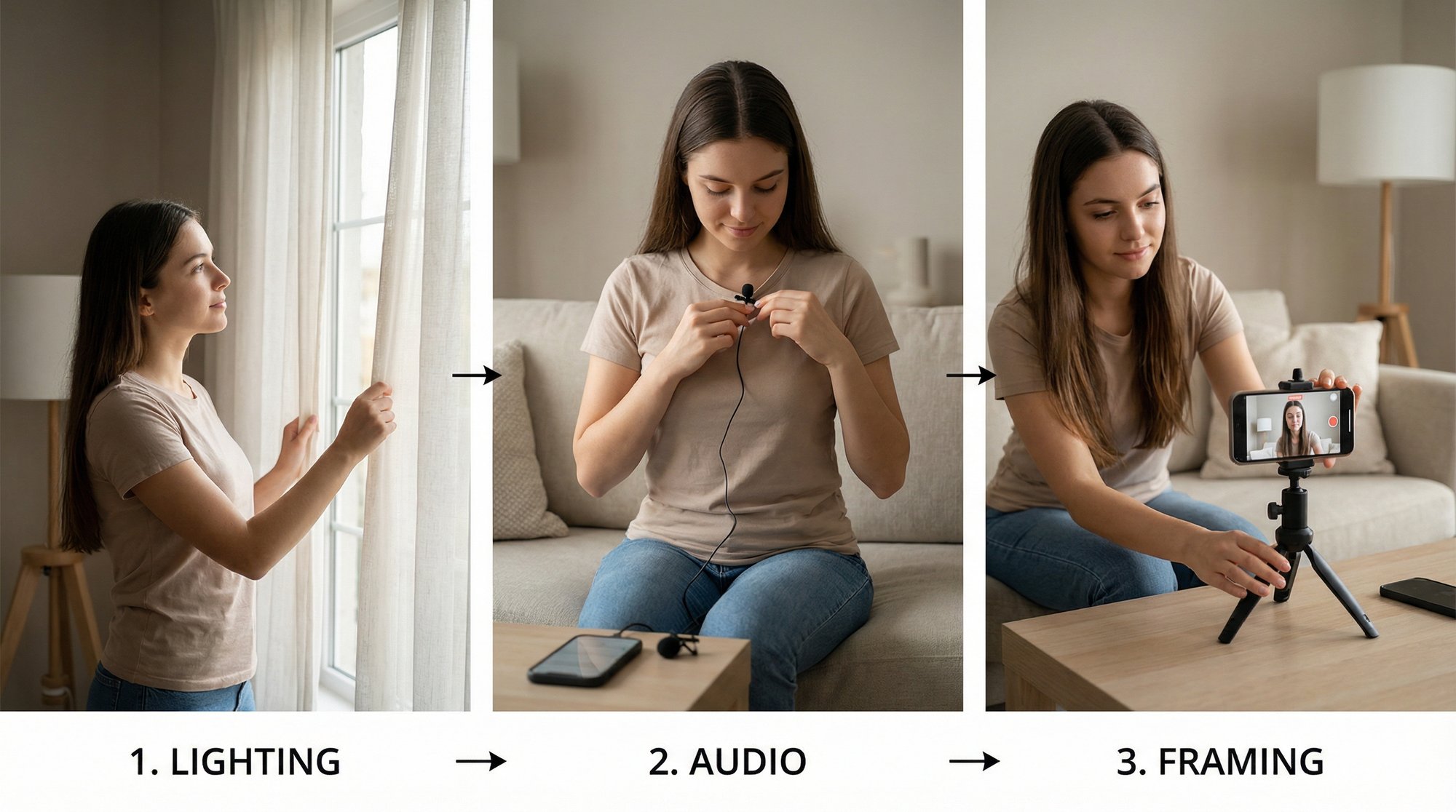
My two cents: Garbage in, garbage out. Seriously. Spend an extra five minutes getting clean audio with minimal background noise. Using a decent external mic instead of your laptop’s built-in one can easily save you 30 minutes of painful editing later.
Once the AI has done its thing, you’ll have a script that’s pretty close to perfect and already synced to your video. Now for the part where you really earn your keep—the human review.
The Human Touch: Correcting the AI Draft
Even the best AI stumbles. It’s going to trip over your industry jargon, misspell brand names, and get confused by accents. Your job is to do a quick pass and clean up these inevitable mistakes. This is what separates a decent, automated transcript from a truly professional one.
Here’s my quick-scan checklist for this phase:
Accuracy Check: Watch the video and read along. Does the text actually match what’s being said? Fix any words the AI misheard.
Punctuation Polish: AI is notoriously bad with commas, periods, and question marks. Correcting these is crucial for getting the tone and rhythm of the sentences right.
Speaker Identification: If you have multiple people talking, the AI might get them mixed up. Make sure you assign the correct speaker to each line.
Jargon and Names: I can't stress this enough. Double-check the spelling of company names, technical terms, and product features. Nothing screams "amateur" like a misspelled brand name.
This infographic shows exactly where the AI-assisted method sits in the grand scheme of things, highlighting its perfect balance of speed and quality control.

As you can see, this approach is the sweet spot—it avoids the slow, tedious nature of manual work and the high price tag of full outsourcing.
The Art of Subtitle Chunking
With your text perfected, it’s time for "chunking." This is the subtle art of breaking long lines of dialogue into small, readable subtitles that appear in sync with the speaker's natural pacing. A sentence that sounds perfectly fine when spoken can become an overwhelming wall of text on screen.
The goal here is simple: create subtitle "chunks" that are easy to read at a glance. You don't want people reading instead of watching.
Here are a few hard-and-fast rules I always follow for chunking:
Keep Lines Short: Stick to a maximum of two lines per subtitle block. If you find yourself needing three, your chunk is too long. Break it up.
Mind the Character Count: A great rule of thumb is to stay under 42 characters per line. This is the magic number to ensure your text fits nicely on all screens—especially mobile—without feeling cramped.
Sync with Speech Cadence: This is key. Break your lines at natural pauses in the conversation. Never split a thought awkwardly across two different subtitle blocks. The text should appear as the speaker starts the phrase and vanish as they finish.
For example, the AI might give you a monster sentence like this: So today we're going to discuss our new Q3 feature rollout which includes the analytics dashboard update and the new integration partner program.
That's a reader's nightmare. A properly chunked version is much more manageable:
Subtitle 1:
So today we're going to discuss
our new Q3 feature rollout...
Subtitle 2:
...which includes the analytics dashboard update
and the new integration partner program.
See how much easier that is to follow? For a deeper dive, our guide on https://unfloppable.com/blog/creating-a-transcript has more tips on getting your text ready. The cleaner your script is from the start, the smoother this whole process will be.
If you often work with interviews or videos with several speakers, you might want to look into dedicated AI transcription software, which often has better features for telling speakers apart.
By combining the AI’s brute force with your own intelligence for corrections and chunking, you’ve just built a repeatable, scalable system. Now, adding subtitles to a video becomes a standard part of your workflow, not a bottleneck.
Turning Subtitles Into a Visual Hook for Social Media

Getting your transcript right is just step one. If you want your videos to actually perform on TikTok, Reels, or Shorts, your subtitles can't be an afterthought—they have to be part of the show. To do that, you first need to understand the critical difference between open and closed captions.
Closed captions are the ones you’re used to seeing on YouTube. They come from a separate file (like an .SRT or .VTT) and viewers can turn them on or off. They’re functional, but they put the choice in the viewer's hands.
Open captions, often called "burned-in" subtitles, are a completely different beast. They are permanently integrated into your video file, meaning they are always visible. For the fast-paced, sound-off world of social media, this is the only way to go.
When it comes to short-form video, burned-in subtitles aren't optional. They're the only way to guarantee your message is seen by 100% of viewers, whether their sound is on or off.
Expecting someone to tap a button to turn on captions is a losing battle on a fast-scrolling feed. Burning them in makes your content instantly understandable and gives you full control over the visual experience.
Open Captions vs. Closed Captions: The Right Tool for the Job
Knowing when to use each type of caption is key to getting the most out of your content on different platforms. They each serve a unique purpose.
Feature | Open Captions (Burned-In) | Closed Captions (.SRT File) |
|---|---|---|
Visibility | Always on; baked right into the video. | User-controlled; can be toggled on or off. |
Styling Control | Total creative freedom over font, color, and effects. | Styling is limited to what the platform allows (e.g., YouTube's settings). |
Best For | TikTok, Instagram Reels, Shorts, and most social video ads. | YouTube, Vimeo, online courses, and website video players. |
SEO Impact | None. The text is part of the image, so search engines can't read it. | Huge. Search engines can crawl the text, boosting your video's discoverability. |
For social media, the immediate accessibility and branding power of open captions easily wins out. You can always provide an SRT file for platforms that support it (like YouTube) while using a stylish, burned-in version for everything else.
Designing Subtitles That Actually Stop the Scroll
Alright, this is where the magic happens. We’re going to turn that plain text into a dynamic visual that makes people want to read along. The goal is to make your subtitles an undeniable part of the video's hook.
There's a reason everyone is talking about this. The demand for accessible, engaging video is causing the subtitle market to explode, projected to grow from USD 0.48 billion in 2026 to USD 1.13 billion by 2035. That staggering 10.17% CAGR shows just how essential subtitles have become. If you're curious, you can dig into the subtitle market trends to see where things are headed.
Here’s my playbook for styling captions that get results:
Go Big and Bold with Fonts: This is no place for delicate, artsy fonts. You need something that’s instantly readable on a small screen. I always recommend thick, clean, sans-serif fonts like Montserrat Bold, The Bold Font, or Poppins.
Create Unmistakable Contrast: Your words have to pop, no matter what's happening in the background. The classic, can't-miss combo is white text with a black outline or drop shadow. A semi-transparent black box behind the text also works wonders.
Use Color to Guide the Eye: Don’t turn your subtitles into a rainbow, but a splash of color is incredibly effective. I like to use a brand color to highlight important keywords or emotional phrases. It’s a simple trick that directs attention and makes the message stick.
Think of your subtitle style as an extension of your brand—it should be as consistent as your logo. And while you're at it, make sure your video's framing is on point for each platform. Our guide on how to change the aspect ratio of a video will get you sorted.
When you pair an accurate script with bold, intentional design, your subtitles become more than just text. They become a powerful tool for grabbing and holding attention.
How Subtitles Boost Your Video SEO and Reach

Most creators think of subtitles as an afterthought for sound-off viewing. That’s a huge mistake. The real, often-missed power of subtitles lies in discoverability—they are one of the most effective SEO tools you have.
Think about it: search engines like Google and YouTube can't watch your video. But they can read. Every single word in your subtitle file gives them a transcript they can crawl, index, and rank. Your spoken content is suddenly transformed from a black box into a library of searchable text.
This means your videos can start showing up for all the specific, long-tail phrases you naturally say. If you mention a niche feature like "automated client onboarding" in a demo, a subtitle file is the only way Google knows to rank you for that exact term. Without it, the opportunity is lost.
Adding subtitles to a video isn't just an accessibility feature; it's a core SEO strategy. You are literally telling search algorithms exactly what your content is about, word for word, making it exponentially more discoverable.
Getting this right is more important than ever. With over 80% of all internet traffic now being video, standing out is tough. The global video streaming market is on track to hit a staggering USD 885.95 billion by 2036, which you can read more about in these video streaming market projections. In a sea of content, you need every advantage you can get.
Unlock a Global Audience with Subtitles
The benefits don't stop with search engines. Subtitles are your passport to reaching a worldwide audience. When you upload a video to YouTube with an accurate English SRT or VTT file, you’re not just helping English speakers. You’re giving YouTube a high-quality source text.
From there, its auto-translate feature can work its magic. Your English captions become the foundation for creating subtitles in dozens of other languages with impressive accuracy. A potential customer in Brazil can watch your tutorial in Portuguese; a prospect in Japan can follow your pitch in Japanese.
You’ve just unlocked massive new markets, and all it took was adding one subtitle file.
Expand Your Reach: Make your content instantly understandable to non-native speakers.
Tap New Markets: Gain traction in countries that were previously out of reach.
Improve Viewer Experience: Help international audiences who prefer reading captions to keep up.
Learning how to add subtitles is one of the highest-impact things you can do for your channel. It turns a simple best practice into a powerful engine for growth, driving organic traffic from all corners of the globe. A great starting point for this is learning how to transcribe a YouTube video to text, which forms the basis of your subtitle file.
Answering Your Top Questions About Video Subtitles
Once you get the hang of adding subtitles, you’ll find little questions start to pop up during the actual work. I get it. Those small uncertainties are the ones that can really slow you down. Let's tackle those common head-scratchers so you can get back to creating.
What's the Real Difference Between Subtitles and Closed Captions?
This is easily the question I hear the most. It’s simpler than you think.
Subtitles are for people who can hear the audio but might not understand the language. Their only job is to translate the spoken words.
Closed captions (CC) are built for viewers who can't hear the audio at all. They don't just show the dialogue; they also describe important sounds like [tense music builds] or [dog barks in distance].
Here's the thing: for most social media and marketing videos, what you're really making are styled, open captions (or burned-in subtitles). Your goal isn't just accessibility in the traditional sense, but grabbing attention in a sound-off feed. The focus is all on super-readable, stylized text.
So, while "closed captions" is often used as a catch-all, what you're likely creating is a permanent, visual part of your video designed for silent viewing.
How Do I Actually Make an SRT File?
An SRT (SubRip Text) file is the universal format for captions. It’s just a plain text file that tells the video player what text to show and exactly when to show it. Each little caption chunk has a number, a super-precise timestamp (Hours:Minutes:Seconds,Milliseconds), and the text itself.
Now, you could try to type one of these out by hand in a text editor. I've seen people try. It's a painful, tedious process that's almost guaranteed to have errors.
Don't do it. A much smarter way is to use a tool that handles it for you. Nearly every professional video editor and AI transcription service, including Unfloppable, will let you export your final, corrected subtitles as a perfect SRT file with just a click.
Should My Subtitles Be Word-for-Word or Cleaned Up?
For any kind of marketing or social media video, your priority is clarity over a perfect transcript. Leave the word-for-word stuff for legal depositions. A 90-second TikTok doesn't need every "um," "ah," and "like."
In fact, you absolutely should edit your captions for readability. It looks far more professional. Here’s what I always clean up:
Filler words: Get rid of the "you knows," "likes," "ums," and "ahs." They just add clutter.
Grammar goofs: Quickly fix any grammatical mistakes that were made while speaking.
Run-on sentences: If you went on a long-winded tangent, break that sentence into shorter, punchier thoughts.
The goal is to keep your voice and meaning intact while making the text incredibly easy to scan.
What's the Best Font and Size for Subtitles?
When it comes to fonts, legibility is everything. This is not the place for fancy, decorative script fonts. You need something that’s instantly readable on a tiny phone screen, even at a quick glance.
I’ve had great success with clean, bold, sans-serif fonts. My go-to choices are:
Montserrat Bold
Poppins
Helvetica Neue Bold
The Bold Font
There isn't a perfect font size, because it really depends on your video's dimensions (e.g., 9:16 vs. 1:1). The best test is the simplest one: watch it on your own phone. Can you read it effortlessly? You're good to go.
Most importantly, you need contrast. The classic, unbeatable combo is white text with a black outline or a semi-transparent black background. This ensures your words are perfectly clear, no matter how chaotic the video behind them gets.
Tired of wrestling with SRT files and text editors? Unfloppable turns your spoken ideas into polished, subtitled videos ready for social media. Just upload your raw footage, and we handle the editing, styling, and subtitles, so you can focus on your message, not the software. Get your three free videos today.
The quickest path to subtitling your video? Start with an AI transcription service for an instant draft. From there, it's just a quick manual cleanup for accuracy before you either export an SRT file for platforms like YouTube or burn the captions right onto your video for social media.
Why Subtitles Are a Must-Have for Video in 2026

Let's be real—subtitles aren't a "nice-to-have" anymore. They are a core part of a winning video strategy. If you still think of them as just an accessibility add-on, you're missing the massive business opportunity right in front of you.
Think about how people actually watch videos today. They're scrolling on a noisy train, in a quiet open-plan office, or late at night next to a sleeping partner. In these "sound-off" situations, your video is completely silent without subtitles, making it easy to scroll past.
Subtitles are your video's silent salesperson. They ensure your message is delivered and understood, even when the volume is at zero. This single feature can be the difference between a viewer scrolling past or stopping to engage with your content.
This fundamental shift in viewing habits means captions are non-negotiable for grabbing and holding attention. A sharp video with clear, easy-to-read text can land its message instantly, which is a game-changer on feeds dominated by muted, auto-playing videos like LinkedIn, Instagram, and TikTok.
The Business Impact of Subtitled Video
Beyond just getting your point across in a noisy world, subtitles deliver real, measurable business results. They're a strategic move that pays off in viewer engagement, message recall, and bottom-line growth.
If you’re a founder or marketer who needs to see the data, the case for subtitles is crystal clear. Let's break down exactly how they move the needle.
Benefit | Key Impact | Audience Segment |
|---|---|---|
Increased Engagement | Keeps viewers watching longer, reducing drop-off rates. | Everyone, especially mobile users in sound-off environments. |
Better Comprehension | Reinforces the message by engaging both visual and auditory senses. | Viewers with complex topics, technical demos, and educational content. |
Expanded Accessibility | Opens your content to the ~430 million people who are deaf or hard of hearing. | Deaf and hard-of-hearing communities, non-native speakers. |
Improved SEO | Provides search engines with a text transcript, making your video discoverable. | Anyone searching for keywords spoken in your video. |
This isn't just theory; it's a proven strategy for getting more out of your video content. The key is to see subtitles not as a chore, but as a powerful tool for connection and conversion.
The numbers don't lie. Adoption of captions and subtitles has exploded, increasing by 572% since 2021. In fact, a staggering 254% more businesses added captions to their videos in 2023 than in the prior year.
With video now a primary marketing tool for nearly 93% of businesses, AI-generated subtitles have become an absolute game-changer. They've been shown to boost viewer retention by an incredible 65% and even increase ad watch time. You can dig into more video marketing statistics to see just how significant this trend is.
Imagine you're a SaaS founder posting a product demo on LinkedIn. A potential lead is scrolling their feed during a boring meeting. Because you added burned-in subtitles, they can watch and fully understand your value proposition without ever turning on the sound. That's not just a small win; that’s a direct path to a new customer, proving that knowing how to add subtitles to a video is a crucial business skill.
Choosing Your Subtitling Workflow
Figuring out how to add subtitles to your videos isn't just a technical step—it’s a strategic choice. The path you take depends entirely on how much time you have, your budget, and just how perfect you need those captions to be.
There are really three ways to go about this. You can do it all by hand, lean on AI to do the heavy lifting, or pay a professional to handle it for you. Let's break down what each one actually looks like in practice.
The Full Manual Method
This is the classic, old-school approach. You open your video, press play, and start typing out every single word. Once the text is down, you go back and manually sync each line by setting start and end timestamps.
Doing it this way gives you ultimate control, no doubt about it. But it's an absolute time sink. A simple five-minute video can easily take you over an hour of tedious work just to get the transcript and timing right. And that’s before you even think about styling.
The manual process offers perfect accuracy if you have the patience, but it’s a killer on your schedule. This is really only for short, critical videos where a human needs to catch every tiny nuance.
Frankly, for most founders and marketers trying to publish content consistently, the manual workflow is a massive bottleneck. It just doesn't scale.
The AI-Assisted Hybrid Workflow
This is where most of us have landed, and for good reason. It’s the smart, modern standard. You start by uploading your video to an AI-powered tool—like the one we use here at Unfloppable—and let it auto-transcribe the audio. This usually takes just a few minutes.
The AI gives you a solid first draft, often with surprising accuracy. Your job is to then do a quick human review. You’ll scan for odd mistakes, fix punctuation, correct the spelling of brand names or industry jargon, and just make sure the timing feels right. It's a quick polish, not a complete overhaul.
This hybrid approach gives you the speed of a machine with the final touch of a human eye. It’s how you get high-quality subtitles without spending hours doing it yourself. We recommend this for 95% of business videos because it hits the perfect balance of speed, cost, and quality.
If you’re ready to jump in, this detailed guide on how to add captions to videos is a fantastic resource that covers the whole process from start to finish.
The Outsourced Professional Service
Your third option is to go completely hands-off by hiring a professional transcriptionist or a dedicated subtitling service. You just send them your video, and they send back a flawless subtitle file, often with a 99% accuracy guarantee.
This is the way to go if you have the budget but zero time, or if your content is highly technical, legally sensitive, or needs translating. These services are staffed by experts, and you pay for that expertise.
Here’s how the three workflows stack up:
Workflow | Best For | Typical Cost | Key Advantage | Key Disadvantage |
|---|---|---|---|---|
Manual | Short, high-stakes videos; perfectionists. | Your time (very high) | Total control | Extremely slow |
AI-Assisted | Most business & marketing videos. | Low (SaaS subscription) | Speed & efficiency | Requires human review |
Outsourced | High-volume, technical, or multi-language content. | $1-5 per minute | 99% accuracy, hands-off | Highest monetary cost |
For almost every brand and startup we work with, the AI-assisted workflow delivers the biggest bang for your buck. It frees you from the soul-crushing task of manual transcription but leaves you in full control of the final product. It’s how you create accessible, professional video content at scale without torching your budget or your calendar.
Alright, let's get practical. Enough theory—it’s time to roll up our sleeves and build the most efficient subtitle workflow for most people: the AI-assisted method. This is my go-to process because it combines the raw speed of AI with the critical nuance only a human can provide. You get professional-level results without the soul-crushing hours of transcribing by hand.
It all starts by letting an automated tool do the heavy lifting. You just feed your video file into a platform like Unfloppable, and it will spit out a full first-draft transcript in minutes. The quality of that first draft, however, really hinges on one thing: your audio quality.
My two cents: Garbage in, garbage out. Seriously. Spend an extra five minutes getting clean audio with minimal background noise. Using a decent external mic instead of your laptop’s built-in one can easily save you 30 minutes of painful editing later.
Once the AI has done its thing, you’ll have a script that’s pretty close to perfect and already synced to your video. Now for the part where you really earn your keep—the human review.
The Human Touch: Correcting the AI Draft
Even the best AI stumbles. It’s going to trip over your industry jargon, misspell brand names, and get confused by accents. Your job is to do a quick pass and clean up these inevitable mistakes. This is what separates a decent, automated transcript from a truly professional one.
Here’s my quick-scan checklist for this phase:
Accuracy Check: Watch the video and read along. Does the text actually match what’s being said? Fix any words the AI misheard.
Punctuation Polish: AI is notoriously bad with commas, periods, and question marks. Correcting these is crucial for getting the tone and rhythm of the sentences right.
Speaker Identification: If you have multiple people talking, the AI might get them mixed up. Make sure you assign the correct speaker to each line.
Jargon and Names: I can't stress this enough. Double-check the spelling of company names, technical terms, and product features. Nothing screams "amateur" like a misspelled brand name.
This infographic shows exactly where the AI-assisted method sits in the grand scheme of things, highlighting its perfect balance of speed and quality control.

As you can see, this approach is the sweet spot—it avoids the slow, tedious nature of manual work and the high price tag of full outsourcing.
The Art of Subtitle Chunking
With your text perfected, it’s time for "chunking." This is the subtle art of breaking long lines of dialogue into small, readable subtitles that appear in sync with the speaker's natural pacing. A sentence that sounds perfectly fine when spoken can become an overwhelming wall of text on screen.
The goal here is simple: create subtitle "chunks" that are easy to read at a glance. You don't want people reading instead of watching.
Here are a few hard-and-fast rules I always follow for chunking:
Keep Lines Short: Stick to a maximum of two lines per subtitle block. If you find yourself needing three, your chunk is too long. Break it up.
Mind the Character Count: A great rule of thumb is to stay under 42 characters per line. This is the magic number to ensure your text fits nicely on all screens—especially mobile—without feeling cramped.
Sync with Speech Cadence: This is key. Break your lines at natural pauses in the conversation. Never split a thought awkwardly across two different subtitle blocks. The text should appear as the speaker starts the phrase and vanish as they finish.
For example, the AI might give you a monster sentence like this: So today we're going to discuss our new Q3 feature rollout which includes the analytics dashboard update and the new integration partner program.
That's a reader's nightmare. A properly chunked version is much more manageable:
Subtitle 1:
So today we're going to discuss
our new Q3 feature rollout...
Subtitle 2:
...which includes the analytics dashboard update
and the new integration partner program.
See how much easier that is to follow? For a deeper dive, our guide on https://unfloppable.com/blog/creating-a-transcript has more tips on getting your text ready. The cleaner your script is from the start, the smoother this whole process will be.
If you often work with interviews or videos with several speakers, you might want to look into dedicated AI transcription software, which often has better features for telling speakers apart.
By combining the AI’s brute force with your own intelligence for corrections and chunking, you’ve just built a repeatable, scalable system. Now, adding subtitles to a video becomes a standard part of your workflow, not a bottleneck.
Turning Subtitles Into a Visual Hook for Social Media

Getting your transcript right is just step one. If you want your videos to actually perform on TikTok, Reels, or Shorts, your subtitles can't be an afterthought—they have to be part of the show. To do that, you first need to understand the critical difference between open and closed captions.
Closed captions are the ones you’re used to seeing on YouTube. They come from a separate file (like an .SRT or .VTT) and viewers can turn them on or off. They’re functional, but they put the choice in the viewer's hands.
Open captions, often called "burned-in" subtitles, are a completely different beast. They are permanently integrated into your video file, meaning they are always visible. For the fast-paced, sound-off world of social media, this is the only way to go.
When it comes to short-form video, burned-in subtitles aren't optional. They're the only way to guarantee your message is seen by 100% of viewers, whether their sound is on or off.
Expecting someone to tap a button to turn on captions is a losing battle on a fast-scrolling feed. Burning them in makes your content instantly understandable and gives you full control over the visual experience.
Open Captions vs. Closed Captions: The Right Tool for the Job
Knowing when to use each type of caption is key to getting the most out of your content on different platforms. They each serve a unique purpose.
Feature | Open Captions (Burned-In) | Closed Captions (.SRT File) |
|---|---|---|
Visibility | Always on; baked right into the video. | User-controlled; can be toggled on or off. |
Styling Control | Total creative freedom over font, color, and effects. | Styling is limited to what the platform allows (e.g., YouTube's settings). |
Best For | TikTok, Instagram Reels, Shorts, and most social video ads. | YouTube, Vimeo, online courses, and website video players. |
SEO Impact | None. The text is part of the image, so search engines can't read it. | Huge. Search engines can crawl the text, boosting your video's discoverability. |
For social media, the immediate accessibility and branding power of open captions easily wins out. You can always provide an SRT file for platforms that support it (like YouTube) while using a stylish, burned-in version for everything else.
Designing Subtitles That Actually Stop the Scroll
Alright, this is where the magic happens. We’re going to turn that plain text into a dynamic visual that makes people want to read along. The goal is to make your subtitles an undeniable part of the video's hook.
There's a reason everyone is talking about this. The demand for accessible, engaging video is causing the subtitle market to explode, projected to grow from USD 0.48 billion in 2026 to USD 1.13 billion by 2035. That staggering 10.17% CAGR shows just how essential subtitles have become. If you're curious, you can dig into the subtitle market trends to see where things are headed.
Here’s my playbook for styling captions that get results:
Go Big and Bold with Fonts: This is no place for delicate, artsy fonts. You need something that’s instantly readable on a small screen. I always recommend thick, clean, sans-serif fonts like Montserrat Bold, The Bold Font, or Poppins.
Create Unmistakable Contrast: Your words have to pop, no matter what's happening in the background. The classic, can't-miss combo is white text with a black outline or drop shadow. A semi-transparent black box behind the text also works wonders.
Use Color to Guide the Eye: Don’t turn your subtitles into a rainbow, but a splash of color is incredibly effective. I like to use a brand color to highlight important keywords or emotional phrases. It’s a simple trick that directs attention and makes the message stick.
Think of your subtitle style as an extension of your brand—it should be as consistent as your logo. And while you're at it, make sure your video's framing is on point for each platform. Our guide on how to change the aspect ratio of a video will get you sorted.
When you pair an accurate script with bold, intentional design, your subtitles become more than just text. They become a powerful tool for grabbing and holding attention.
How Subtitles Boost Your Video SEO and Reach

Most creators think of subtitles as an afterthought for sound-off viewing. That’s a huge mistake. The real, often-missed power of subtitles lies in discoverability—they are one of the most effective SEO tools you have.
Think about it: search engines like Google and YouTube can't watch your video. But they can read. Every single word in your subtitle file gives them a transcript they can crawl, index, and rank. Your spoken content is suddenly transformed from a black box into a library of searchable text.
This means your videos can start showing up for all the specific, long-tail phrases you naturally say. If you mention a niche feature like "automated client onboarding" in a demo, a subtitle file is the only way Google knows to rank you for that exact term. Without it, the opportunity is lost.
Adding subtitles to a video isn't just an accessibility feature; it's a core SEO strategy. You are literally telling search algorithms exactly what your content is about, word for word, making it exponentially more discoverable.
Getting this right is more important than ever. With over 80% of all internet traffic now being video, standing out is tough. The global video streaming market is on track to hit a staggering USD 885.95 billion by 2036, which you can read more about in these video streaming market projections. In a sea of content, you need every advantage you can get.
Unlock a Global Audience with Subtitles
The benefits don't stop with search engines. Subtitles are your passport to reaching a worldwide audience. When you upload a video to YouTube with an accurate English SRT or VTT file, you’re not just helping English speakers. You’re giving YouTube a high-quality source text.
From there, its auto-translate feature can work its magic. Your English captions become the foundation for creating subtitles in dozens of other languages with impressive accuracy. A potential customer in Brazil can watch your tutorial in Portuguese; a prospect in Japan can follow your pitch in Japanese.
You’ve just unlocked massive new markets, and all it took was adding one subtitle file.
Expand Your Reach: Make your content instantly understandable to non-native speakers.
Tap New Markets: Gain traction in countries that were previously out of reach.
Improve Viewer Experience: Help international audiences who prefer reading captions to keep up.
Learning how to add subtitles is one of the highest-impact things you can do for your channel. It turns a simple best practice into a powerful engine for growth, driving organic traffic from all corners of the globe. A great starting point for this is learning how to transcribe a YouTube video to text, which forms the basis of your subtitle file.
Answering Your Top Questions About Video Subtitles
Once you get the hang of adding subtitles, you’ll find little questions start to pop up during the actual work. I get it. Those small uncertainties are the ones that can really slow you down. Let's tackle those common head-scratchers so you can get back to creating.
What's the Real Difference Between Subtitles and Closed Captions?
This is easily the question I hear the most. It’s simpler than you think.
Subtitles are for people who can hear the audio but might not understand the language. Their only job is to translate the spoken words.
Closed captions (CC) are built for viewers who can't hear the audio at all. They don't just show the dialogue; they also describe important sounds like [tense music builds] or [dog barks in distance].
Here's the thing: for most social media and marketing videos, what you're really making are styled, open captions (or burned-in subtitles). Your goal isn't just accessibility in the traditional sense, but grabbing attention in a sound-off feed. The focus is all on super-readable, stylized text.
So, while "closed captions" is often used as a catch-all, what you're likely creating is a permanent, visual part of your video designed for silent viewing.
How Do I Actually Make an SRT File?
An SRT (SubRip Text) file is the universal format for captions. It’s just a plain text file that tells the video player what text to show and exactly when to show it. Each little caption chunk has a number, a super-precise timestamp (Hours:Minutes:Seconds,Milliseconds), and the text itself.
Now, you could try to type one of these out by hand in a text editor. I've seen people try. It's a painful, tedious process that's almost guaranteed to have errors.
Don't do it. A much smarter way is to use a tool that handles it for you. Nearly every professional video editor and AI transcription service, including Unfloppable, will let you export your final, corrected subtitles as a perfect SRT file with just a click.
Should My Subtitles Be Word-for-Word or Cleaned Up?
For any kind of marketing or social media video, your priority is clarity over a perfect transcript. Leave the word-for-word stuff for legal depositions. A 90-second TikTok doesn't need every "um," "ah," and "like."
In fact, you absolutely should edit your captions for readability. It looks far more professional. Here’s what I always clean up:
Filler words: Get rid of the "you knows," "likes," "ums," and "ahs." They just add clutter.
Grammar goofs: Quickly fix any grammatical mistakes that were made while speaking.
Run-on sentences: If you went on a long-winded tangent, break that sentence into shorter, punchier thoughts.
The goal is to keep your voice and meaning intact while making the text incredibly easy to scan.
What's the Best Font and Size for Subtitles?
When it comes to fonts, legibility is everything. This is not the place for fancy, decorative script fonts. You need something that’s instantly readable on a tiny phone screen, even at a quick glance.
I’ve had great success with clean, bold, sans-serif fonts. My go-to choices are:
Montserrat Bold
Poppins
Helvetica Neue Bold
The Bold Font
There isn't a perfect font size, because it really depends on your video's dimensions (e.g., 9:16 vs. 1:1). The best test is the simplest one: watch it on your own phone. Can you read it effortlessly? You're good to go.
Most importantly, you need contrast. The classic, unbeatable combo is white text with a black outline or a semi-transparent black background. This ensures your words are perfectly clear, no matter how chaotic the video behind them gets.
Tired of wrestling with SRT files and text editors? Unfloppable turns your spoken ideas into polished, subtitled videos ready for social media. Just upload your raw footage, and we handle the editing, styling, and subtitles, so you can focus on your message, not the software. Get your three free videos today.